


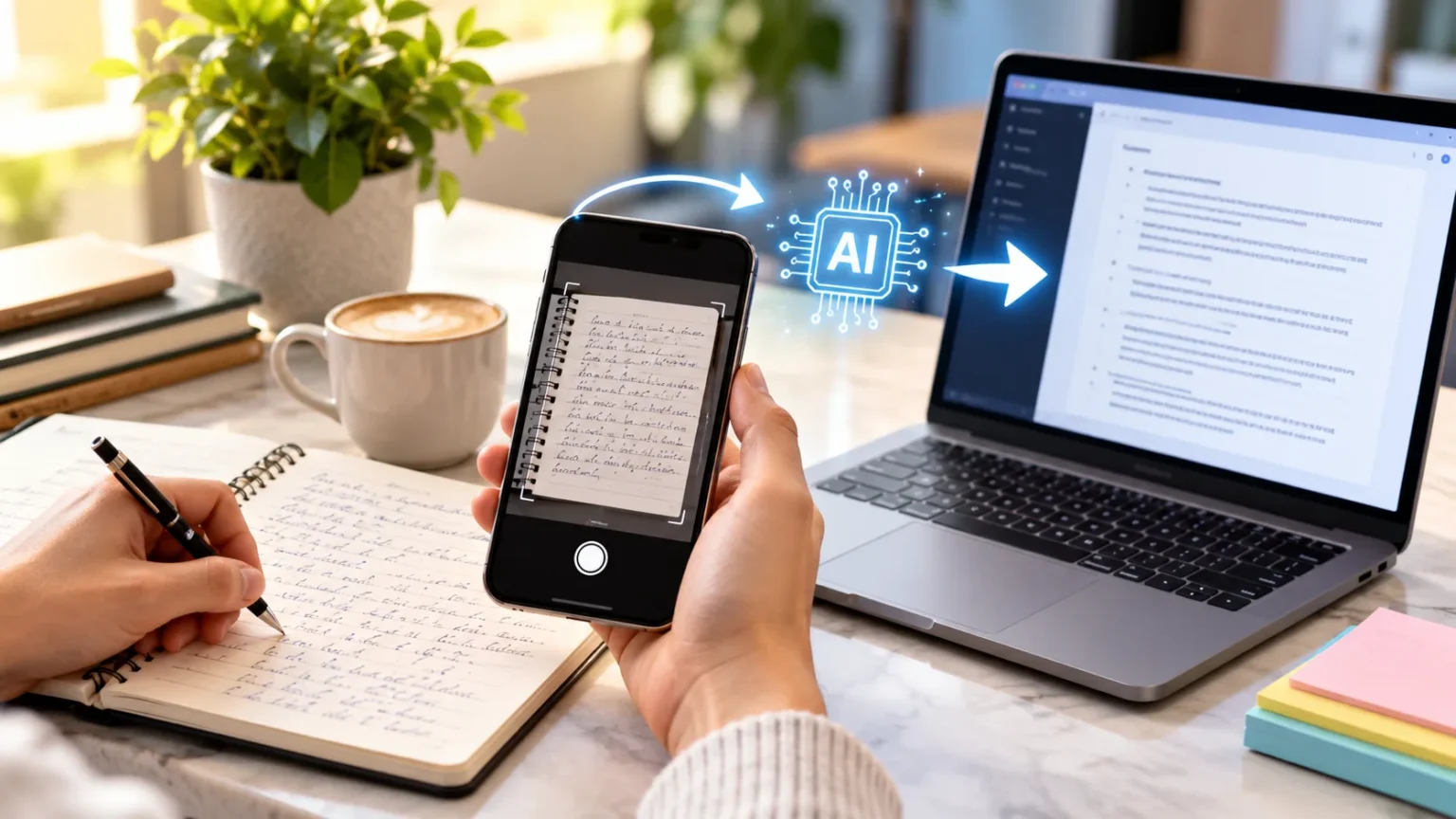
Handwritten notes are useful for recording ideas, studying, and organizing information, but converting them into digital documents can take considerable time. Manually typing pages of classroom notes, meeting summaries, or personal reminders is often repetitive and inconvenient. Fortunately, artificial intelligence makes this process much easier. Learning how to turn handwritten notes into text with AI can help you transform paper-based information into editable, searchable, and organized digital content.
Modern AI handwriting recognition tools can identify written characters from photographs, scanned pages, and digital handwriting. These applications use optical character recognition and advanced language processing to interpret handwritten words and convert them into readable text. Whether you are a student, teacher, researcher, or professional, understanding the conversion process can help you save time while preserving important information.
What Is AI Handwriting Recognition?
AI handwriting recognition is a technology that identifies handwritten letters, words, and sentences and converts them into digital text. Unlike manually typing information from paper, handwriting recognition software analyzes images of written content and attempts to interpret the characters. The resulting text can often be copied, edited, searched, and organized using ordinary digital applications.
Traditional optical character recognition, commonly called OCR, was primarily developed to identify printed characters. Modern handwriting recognition systems use more advanced pattern recognition and machine learning techniques to interpret different writing styles. Some AI models also consider surrounding words and sentence structure when determining what unclear handwritten characters might represent.
However, handwriting recognition is not always completely accurate, especially when notes contain unusual abbreviations, overlapping letters, or complicated layouts. The quality of the original image also influences the result. Understanding these limitations helps users prepare their documents carefully and review converted text before relying on it for important academic or professional tasks.
Why Convert Handwritten Notes Into Digital Text?
Converting handwritten notes into digital text makes information easier to organize, search, and reuse. Paper notebooks can become difficult to manage when they contain hundreds of pages covering different subjects. Digital documents allow users to locate important keywords, reorganize paragraphs, and combine information from multiple sources without repeatedly searching through physical pages.
Students can benefit from converting classroom notes into editable documents before examinations or assignments. Digital notes can be organized into study guides, summaries, and revision materials that are easier to update. Professionals may also find the process useful for recording meeting discussions, organizing project information, or preserving handwritten observations.
Another benefit is the ability to maintain digital copies of information that might otherwise be lost or damaged. Saved documents can be stored in appropriate folders and backed up when necessary. Although digital conversion does not eliminate every risk, having organized copies can make information more accessible across devices and easier to maintain over time.
How Does AI Convert Handwriting Into Text?
AI handwriting conversion generally begins with an image of the original handwritten material. This image might come from a smartphone camera, scanner, screenshot, or digital note-taking application. The software examines the image to identify areas containing text and separates recognizable characters or groups of words from the surrounding background.
Recognition models analyze the shapes and relationships between handwritten letters to predict the intended content. More advanced systems may use language context to interpret unclear words or distinguish between similar characters. For example, surrounding sentence structure can help a model determine whether an ambiguous mark represents a letter, number, or punctuation symbol.
After recognizing the content, the application generates text that users can review and edit. Some tools preserve line breaks, while others attempt to reconstruct paragraphs and headings. The final result should always be checked carefully because AI may misinterpret names, numbers, mathematical symbols, or words that are difficult to read.
Best AI Tools to Convert Handwritten Notes Into Text
Several AI-powered applications can help convert handwriting into editable text, although their features and limitations vary. Google Lens is a convenient option for recognizing text from photographs, while Microsoft OneNote includes OCR capabilities and handwriting tools in supported versions. ChatGPT and other image-capable AI assistants can also help transcribe and organize handwritten content.
Apple Live Text is another useful feature for people using compatible iPhones and iPads. It can recognize text inside supported photographs and allow users to copy information into other applications. Dedicated scanning applications and document management software may also support text recognition, although handwriting accuracy can differ considerably between tools.
When choosing a handwriting-to-text converter, consider supported languages, handwriting accuracy, privacy settings, and export options. Some applications include free features, while others restrict advanced recognition or document processing. Testing the same sample page with different tools can help you identify which option works best for your handwriting style.
How to Convert Handwritten Notes Using Google Lens
Google Lens is a convenient tool for converting handwritten notes into digital text using a smartphone camera. It can recognize words from photographs and allow users to select and copy the extracted content. This makes it useful for students who want to digitize notebook pages without manually typing every sentence.
Begin by opening Google Lens through a supported Google application and capturing a clear photograph of your handwritten notes. Select the text recognition option, highlight the words you want to extract, and copy the recognized text. Paste the result into a document editor or note-taking application for further review.
After pasting the content, compare the digital version with your original notebook page. Correct any spelling errors, missing words, or incorrectly recognized numbers. Google Lens works best when handwriting is reasonably clear and photographs have sufficient lighting, so retaking a blurry image may improve recognition results.
How to Turn Handwritten Notes Into Text With ChatGPT
ChatGPT can help interpret handwritten notes from uploaded photographs when image understanding is available in your account. This approach can be useful when you want more than simple text extraction. For example, you can request a transcription followed by organized headings, corrected spacing, or a separate explanation of difficult concepts.
Start by taking a clear photograph or scanning the handwritten page. Upload the image into ChatGPT and request an accurate transcription that preserves the original wording. A useful instruction is: “Convert these handwritten notes into editable text. Keep the original wording and headings, and mark any unclear words instead of guessing.”
Once the transcription appears, review it against the original image before making additional changes. You can then request formatting, paragraph organization, or a summary as a separate task. Keeping transcription and editing separate helps prevent the AI from silently rewriting information that should remain faithful to your original notes.
Convert Handwritten Notes Using Microsoft OneNote
Microsoft OneNote is a note-taking application that supports handwriting and text recognition in certain versions. It can extract recognized text from inserted pictures and file printouts, allowing users to copy the result into editable notes. This feature can be useful when handwritten pages are already organized within a digital notebook.
To extract text from a photograph, insert the image into a supported OneNote desktop application. Right-click the picture and select the option to copy text from the image when available. Paste the extracted content into a separate note or document, then review it for errors or missing information.
OneNote also supports converting certain digitally handwritten ink strokes into text through its drawing tools. This is different from recognizing handwriting in photographs, and available features depend on the application version. Handwritten or highly stylized text may not be recognized reliably, making careful proofreading important after conversion.
Use Apple Live Text to Digitize Handwritten Notes
Apple Live Text allows compatible Apple devices to recognize text within photographs and supported images. It can be convenient for users who already store notebook photographs on an iPhone or iPad. Instead of installing a separate scanning application, users may be able to select recognized text directly from the Photos app.
Open a clear photograph containing handwriting and look for the text recognition controls when supported. Select the recognized text, copy it, and paste it into Notes, Pages, or another suitable document editor. The exact interface depends on the device, operating system, language, and whether the handwriting is recognizable.
Live Text may struggle with unusual handwriting, overlapping characters, or text written at difficult angles. Some languages and handwriting styles receive better recognition than others. After copying the content, compare the result with the original photograph and correct errors before using it in assignments, reports, or other documents.
How to Take Clear Photos of Handwritten Notes
The quality of a photograph strongly influences how accurately AI recognizes handwriting. Blurry images, uneven lighting, and shadows can make otherwise readable words difficult for recognition software to interpret. Preparing the page carefully before taking a photograph can reduce errors and improve the overall conversion process.
Place the notebook on a flat surface and position your camera directly above the page. Use sufficient lighting without creating strong reflections or shadows across the writing. Keep the entire page visible, ensure that the text is in focus, and avoid taking photographs from extreme angles.
For longer documents, photograph one page at a time rather than capturing several small pages in a single image. Check each photograph before continuing to ensure that headings, numbers, and written details remain readable. Consistent image quality can make multiple-page conversion more reliable and easier to organize afterward.
How to Convert Multiple Handwritten Pages at Once
Digitizing several pages of handwritten notes requires a slightly different approach from converting one photograph. Large collections may include inconsistent handwriting, page numbers, diagrams, and different document layouts. Organizing the pages before processing helps prevent information from becoming mixed up or appearing in the wrong sequence.
Begin by arranging the pages in their original order and capturing clear images of each one. Use consistent file names or page numbers to identify the sequence. Depending on the application, you may upload multiple images, combine them into a PDF, or process them separately before organizing the extracted text.
After conversion, check that the text from each page appears in the correct order. Look for duplicated paragraphs, missing sections, and headings that may have been interpreted incorrectly. Processing difficult pages separately can make corrections easier than trying to repair a large document containing several recognition errors.
Turn Handwritten Notes Into Word Documents
Converting handwritten notes into a Word document can make the information easier to edit, format, and share. Microsoft Word and other compatible editors support headings, tables, lists, and search functions that are useful for organizing longer notes. The main requirement is obtaining reasonably accurate text from your handwriting recognition tool.
First, extract the handwritten content using Google Lens, OneNote, ChatGPT, or another suitable application. Copy the resulting text and paste it into a new Word document. Review the content before applying formatting so that transcription errors do not become harder to identify within a heavily edited layout.
Once the text is accurate, organize it using clear headings, paragraphs, and bullet points where appropriate. Save the document with a descriptive file name and keep a copy of the original photograph. This allows you to return to the handwritten source whenever you need to verify a particular word or detail.
Convert Handwritten Notes Into Searchable PDFs
Searchable PDFs are useful when you want to preserve the appearance of handwritten pages while making their contents easier to locate. Ordinary scanned PDFs often contain only images, meaning the text cannot be selected or searched directly. OCR software can add a recognized text layer to supported documents.
Begin by scanning your handwritten pages into a PDF using a suitable application. Open the document in OCR-capable software and apply text recognition if supported. Adobe Acrobat includes scanning and OCR features that can make recognized document text searchable, although results and availability depend on the software version.
Handwriting recognition in PDF software can be less reliable than recognition of clear printed text. After processing, test the search function using several words from different pages. Keep the original scanned document available because the searchable text layer may contain errors even when the visible handwriting remains unchanged.
How to Improve AI Handwriting Recognition Accuracy
Improving transcription accuracy begins with using clear source material. AI systems generally perform better when handwriting has consistent spacing, recognizable characters, and sufficient contrast against the page. Dark ink on light paper can be easier to interpret than faint pencil markings or writing affected by shadows.
When recognition results contain frequent errors, try improving the photograph before repeating the process. Cropping unnecessary background areas, correcting page orientation, and increasing readability may help the software identify characters. Processing smaller sections separately can also be useful when complex layouts or handwritten diagrams interfere with recognition.
You can improve reliability by giving AI tools specific instructions about the desired output. Request exact transcription rather than paraphrasing, and ask the model to mark unreadable words clearly. Always verify names, dates, figures, and technical terminology because even advanced recognition systems can make convincing but incorrect guesses.
Convert Messy Handwriting Into Readable Digital Text
Messy handwriting can be difficult for traditional OCR applications because letters may overlap or vary in shape. AI-assisted recognition may sometimes interpret unclear words using surrounding context. However, this ability can also introduce incorrect guesses, making accurate transcription more challenging when the original writing is difficult to read.
For unclear pages, take several photographs under different lighting conditions and compare the results. Enlarging individual sections may help the AI recognize words that were difficult to interpret in the full-page image. Asking for uncertain words to be marked rather than invented can also reduce misleading output.
After extracting the content, review each sentence and correct mistakes using your knowledge of the original notes. If a word remains unreadable, leave a clear placeholder until you can verify it. This approach is safer than accepting a plausible replacement that changes the meaning of the original information.
How to Digitize Handwritten Study Notes for Students
Students often collect handwritten notes from lectures, textbooks, classroom discussions, and personal revision sessions. Converting these notes into text can make studying more organized and reduce the time spent searching through multiple notebooks. Digital documents also allow students to group related topics and update information as their understanding develops.
After converting a notebook page, organize the text according to the relevant subject and chapter. Important definitions, formulas, and examples can be separated into clearly labeled sections. Students can also use AI tools to generate practice questions or explanations after confirming that the original transcription is accurate.
Digital notes should support learning rather than replace careful reading or independent understanding. Reviewing the converted material helps students identify mistakes and reinforce important concepts. Keeping the original handwritten pages available is especially useful when technical symbols, mathematical expressions, or diagrams require additional verification.
Organize and Search Your Converted Digital Notes
Once handwritten notes have been converted into text, organizing them properly helps maintain their usefulness. A collection of unnamed documents can become just as confusing as several unorganized notebooks. Clear file names, folders, and consistent headings make it easier to locate information when you need it.
Consider organizing digital notes by subject, project, date, or topic. For example, students might keep separate folders for science, mathematics, and history, while professionals may organize notes by meeting or project. Searchable text allows users to locate keywords quickly without reviewing every document from beginning to end.
Adding descriptive headings and preserving relevant dates can make notes easier to understand later. Avoid changing the meaning of the original content simply to improve formatting. A well-organized digital archive should remain accurate, accessible, and easy to update as additional handwritten information becomes available.
Protect Your Privacy When Uploading Handwritten Notes
Privacy is an important consideration when converting handwritten notes with online AI tools. Personal notebooks may contain contact details, private conversations, school records, or confidential work information. Uploading these materials to third-party services can involve data handling practices that users should understand before sharing sensitive content.
Review the application’s privacy policy, data retention settings, and available account controls before uploading private documents. Avoid including passwords, identification numbers, financial details, or other confidential information unless there is a clear and authorized reason. For sensitive documents, approved organizational tools or suitable offline processing may be preferable.
Students and employees should also consider whether the notes belong to someone else or contain information covered by institutional rules. Permission may be necessary before uploading restricted material. Protecting privacy is part of responsible AI use and should remain a priority even when digital conversion would otherwise save time.
Common Mistakes to Avoid When Converting Handwriting
One common mistake is uploading low-quality photographs and expecting perfectly accurate results. Recognition software may misread faded letters, shadows, page folds, or overlapping words. Taking clear images before processing can prevent unnecessary corrections and reduce the likelihood of missing important details.
Another mistake is asking AI to summarize or rewrite handwritten notes before checking the transcription. This may cause the system to omit information or replace unclear wording with assumptions. Extracting the original text first and editing it separately helps maintain accuracy while still allowing improvements in formatting and readability.
Users should also avoid assuming that every recognized word is correct simply because the output appears fluent. AI can generate convincing sentences containing inaccurate names, numbers, or technical terms. Careful comparison with the original notes remains essential, especially when the material will be used for academic or professional purposes.
Conclusion
Learning how to turn handwritten notes into text with AI can make everyday studying, research, and information management much easier. Tools such as Google Lens, ChatGPT, Microsoft OneNote, and Apple Live Text can help recognize handwriting and convert it into editable digital content. The best approach depends on your device, handwriting style, and document requirements.
Accurate conversion requires clear photographs, suitable recognition software, and careful review of the extracted text. Organizing multiple pages, preserving original documents, and correcting unclear words can improve the reliability of your digital notes. Additional formatting and summarization features can then help transform the information into useful study materials or professional documents.
AI handwriting recognition is a practical tool for reducing repetitive typing and improving access to written information. However, it should support careful document handling rather than replace verification. By following a consistent process and protecting sensitive information, you can maintain organized digital notes while preserving the original meaning of your handwritten content.
Frequently Asked Questions (FAQs)
Can AI convert handwritten notes into editable text?
Yes. AI handwriting recognition tools can analyze photographs or scans and turn recognized handwriting into editable text. Accuracy depends on handwriting clarity, image quality, language support, and the software used.
What is the best free AI tool for converting handwriting to text?
Google Lens is a convenient free option for recognizing handwritten notes from photographs. Microsoft OneNote also includes text recognition features, while other applications may have different usage limits.
Can ChatGPT read and convert handwritten notes?
Yes. When image uploads are available, ChatGPT can attempt to transcribe handwritten notes from photographs. However, unclear writing may lead to errors, so important details should always be checked.
How do I convert handwritten notes into a Word document?
Take a clear photograph, extract the handwriting using a recognition tool, and paste the resulting text into Microsoft Word. Review transcription errors before applying headings and other formatting.
Can AI recognize messy or difficult handwriting?
AI may recognize some difficult handwriting using character patterns and surrounding context. However, unclear letters, overlapping words, and poor photographs can reduce accuracy, making manual verification necessary.