
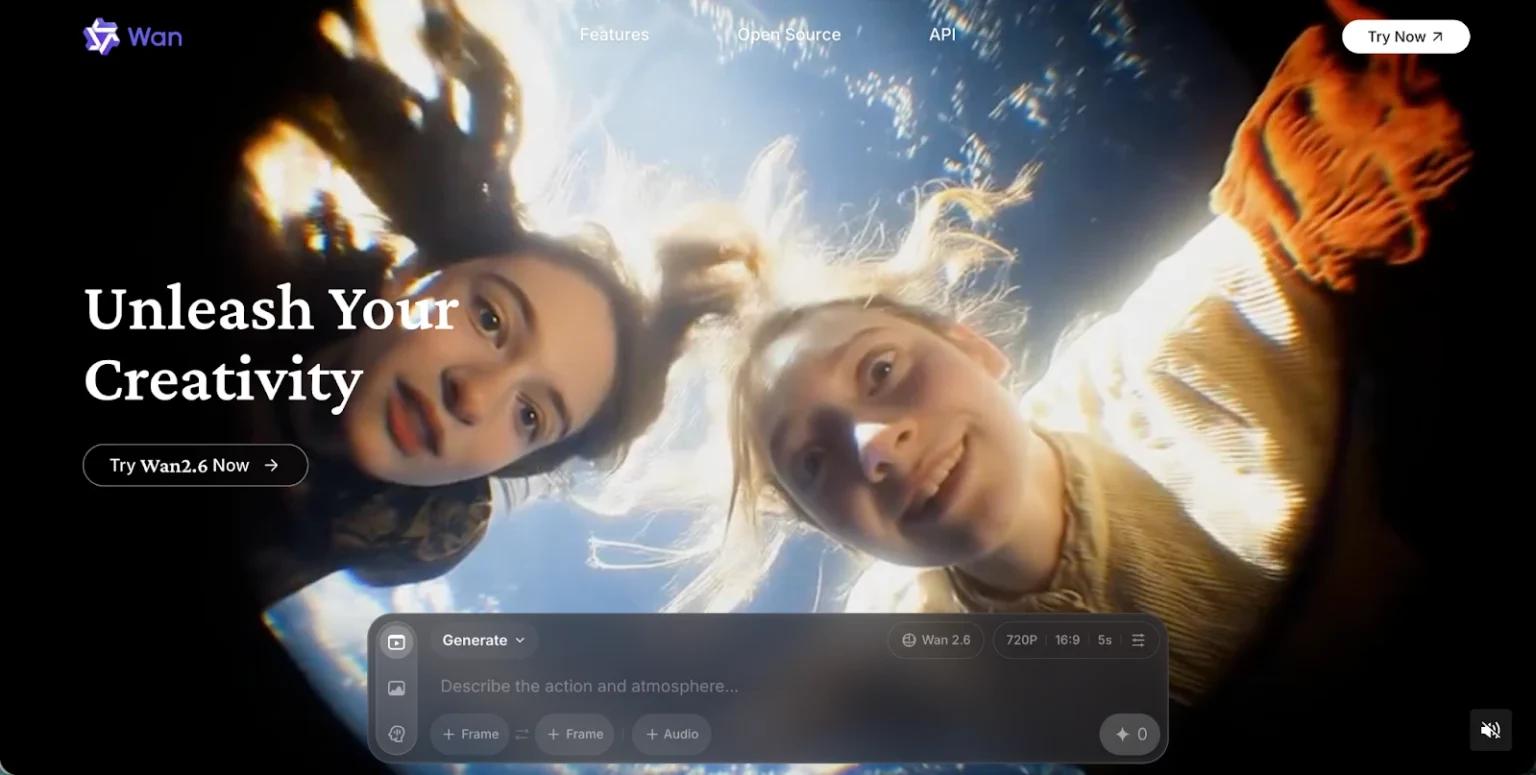
If you want to try Wan AI without paying first, Videoinu is a practical place to start. New users get free credits to test the workflow, and Wan AI is available inside Videoinu’s regular video creation tools.
On Videoinu, Wan 2.6 is presented as an enhanced version with improved quality and better motion control.
Wan AI is a good fit when you want a flexible video model that can handle everyday prompt-based creation without making the workflow feel complicated. Wan’s own platform describes it as an AI creative platform for video and image generation, and its current Wan 2.6 materials emphasize 15-second, 1080p narrative videos with synced audio and visuals.
What Wan AI Is Good For
Wan AI works well for general video creation, especially when you want smooth motion, clearer output, and a model that can handle different kinds of prompts. Videoinu’s tool pages surface Wan 2.6 directly in both text-to-video and image-to-video flows, which suggests it is one of the main practical model options on the platform right now.
Compared with Seedance, Wan AI feels more like a flexible all-round option. Seedance is usually framed around stronger cinematic motion and more aggressive movement-led output, while Wan AI is easier to think of as a stable creator model for broader everyday use. That comparison is an inference from how Wan and Seedance are positioned on their public materials.
How to Use Wan AI on Videoinu
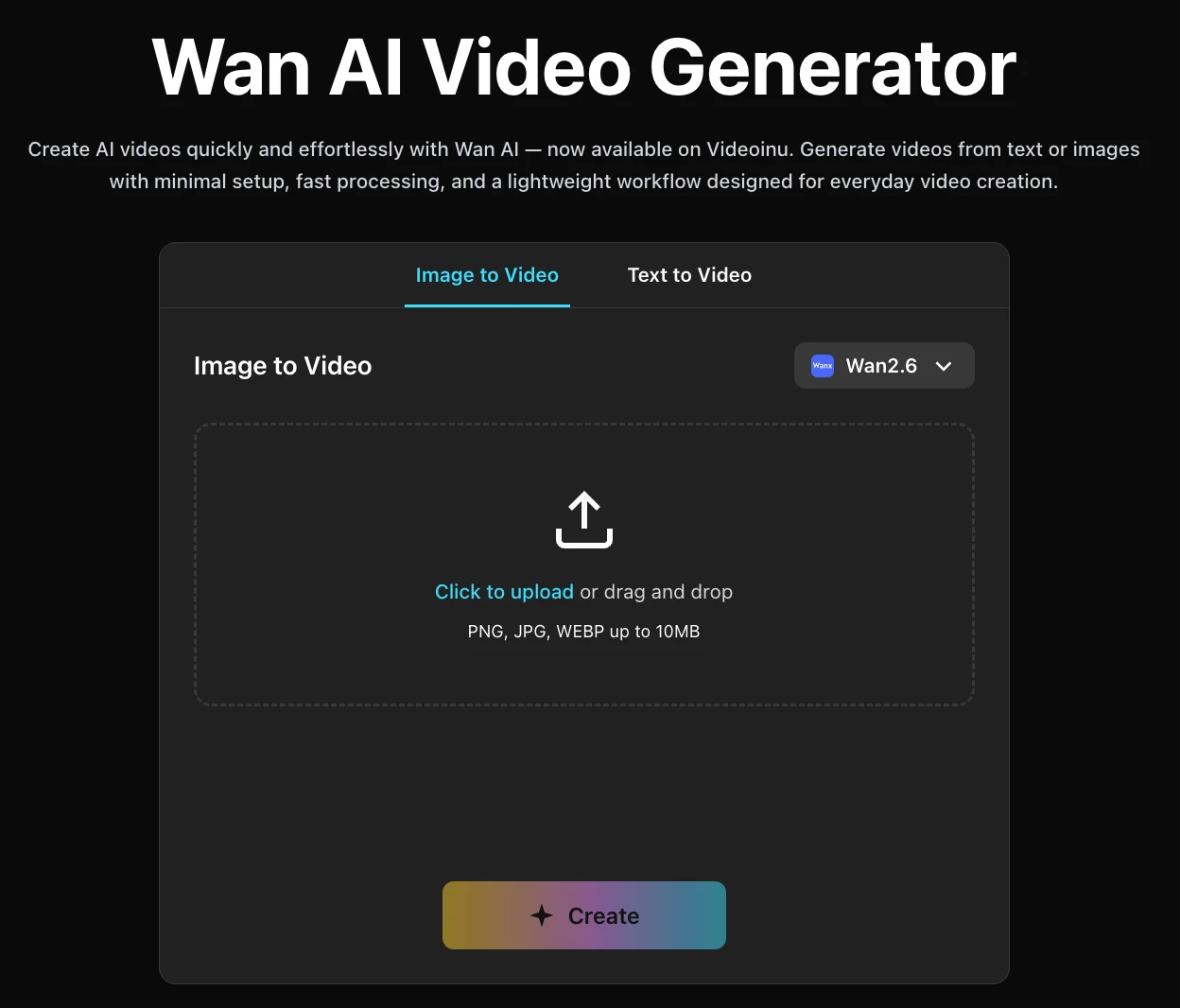
Step 1: Sign Up for Videoinu
Start by creating a Videoinu account. Once you are inside, you can use the platform’s normal creation tools and try Wan AI through the same workflow used for other models. Videoinu’s public pages present this as a creator-friendly platform built around text-to-video, image-to-video, and longer storytelling workflows.
Step 2: Open a Video Tool and Choose Wan AI
After signing in, open one of Videoinu’s video tools and choose Wan 2.6 as the model. Wan 2.6 appears directly in the text-to-video interface and the image-to-video interface, with the same positioning around improved quality and better motion control.
If you only have an idea in your head, start with text. If you already have a strong still image, start with image input instead. Videoinu supports both paths directly.
Step 3: Start with a Clear Prompt or Image
If you use text input, begin with a prompt that gives Wan AI one clear scene.
For example:
A woman walks through a quiet train station at sunrise, soft mist, gentle camera movement, cinematic mood.
This kind of prompt works well because Wan AI is easier to judge when the scene is readable and the motion goal is clear. Wan’s own materials emphasize instruction following, synced audio-visual output, and narrative video generation, which all support using cleaner prompts first.
If you use image input instead, upload a strong source image and keep the extra prompt focused on movement, pacing, or camera feel. Videoinu’s image-to-video flow is built for that kind of use, with upload support for JPG, PNG, and WEBP plus an optional prompt field.
Step 4: Focus on Motion, Clarity, and Clip Length
This is the step that matters most with Wan AI. Instead of trying to force too many things into one scene, it usually helps to think about:
- what the subject is doing
- how the camera should move
- whether the clip should feel calm, polished, or energetic
- how much should change over a short span
Wan’s own platform currently highlights up to 15-second 1080p video generation, while Videoinu’s generator flow is built around short clips and currently expects a 10-second result in the visible interface.
Step 5: Generate, Review, and Improve
Generate the first version and treat it like a draft. Watch it and check whether the motion feels smooth, whether the scene is easy to follow, and whether the output matches the tone you wanted.
If the result is close but not right, change one thing at a time. Tighten the prompt. Simplify the action. Make the subject clearer. Small changes are usually more helpful than rewriting everything from scratch. That recommendation is an inference from Wan’s prompt-led workflow and Videoinu’s short-clip creation pattern.
Why Videoinu Is a Good Place to Try Wan AI
One reason is simplicity. Wan AI fits into the same general creation flow as the other models on Videoinu, so you do not need to learn a separate system just to test it. Another reason is flexibility: Wan 2.6 is surfaced directly in both the text-to-video and image-to-video tools, which makes it easy to move between prompt-first and image-first creation.
That makes Videoinu a useful place to start if you want a practical workflow instead of hopping between separate model sites. The platform also supports longer creator workflows beyond one short clip, so a simple Wan AI test can become part of something larger later.
Tips for Better Wan AI Results
Start with one clear idea. Wan AI tends to work better when the scene is easy to understand quickly. That fits both Wan’s instruction-following positioning and Videoinu’s short-clip workflow.
Use text input for fast testing. If you are still shaping the idea, Videoinu’s text-to-video workflow is the quickest way to see whether the tone and motion feel right.
Use image input when the look already matters. If you have artwork, a product photo, or a strong still, Videoinu’s image-to-video workflow gives you a more guided starting point.
Choose Seedance instead when the project depends more on stronger cinematic motion and a more aggressively dynamic look. Wan AI is easier to think of as a broader, steadier model for everyday creation. That comparison is an inference from public positioning, not a formal benchmark.
Final Thoughts
The easiest way to get started with Wan AI on Videoinu for free is to sign up, choose Wan 2.6 inside a video tool, and begin with either a short prompt or a strong image. If your goal is a flexible model for everyday AI video creation, Wan AI is a very practical one to test first.
FAQs
Can I use Wan AI on Videoinu for free?
Videoinu provides free credits for new users, which gives you a free starting path to try models like Wan AI inside its creation workflow.
What is Wan AI best for?
Wan AI is a flexible video model for text- and image-based creation, and Wan 2.6 is currently positioned around improved quality, better motion control, and narrative video generation.
Can I start with text or image input?
Yes. Wan 2.6 appears in both Videoinu’s text-to-video and image-to-video tools.
How is Wan AI different from Seedance?
Wan AI is easier to think of as a broad, stable creator model, while Seedance is more strongly associated with cinematic motion and high-energy movement. This is a positioning comparison, not a formal performance test.
Can Wan AI make longer clips?
Wan’s own platform currently highlights up to 15-second 1080p videos, while Videoinu’s visible generator flow is built around shorter clip generation.