



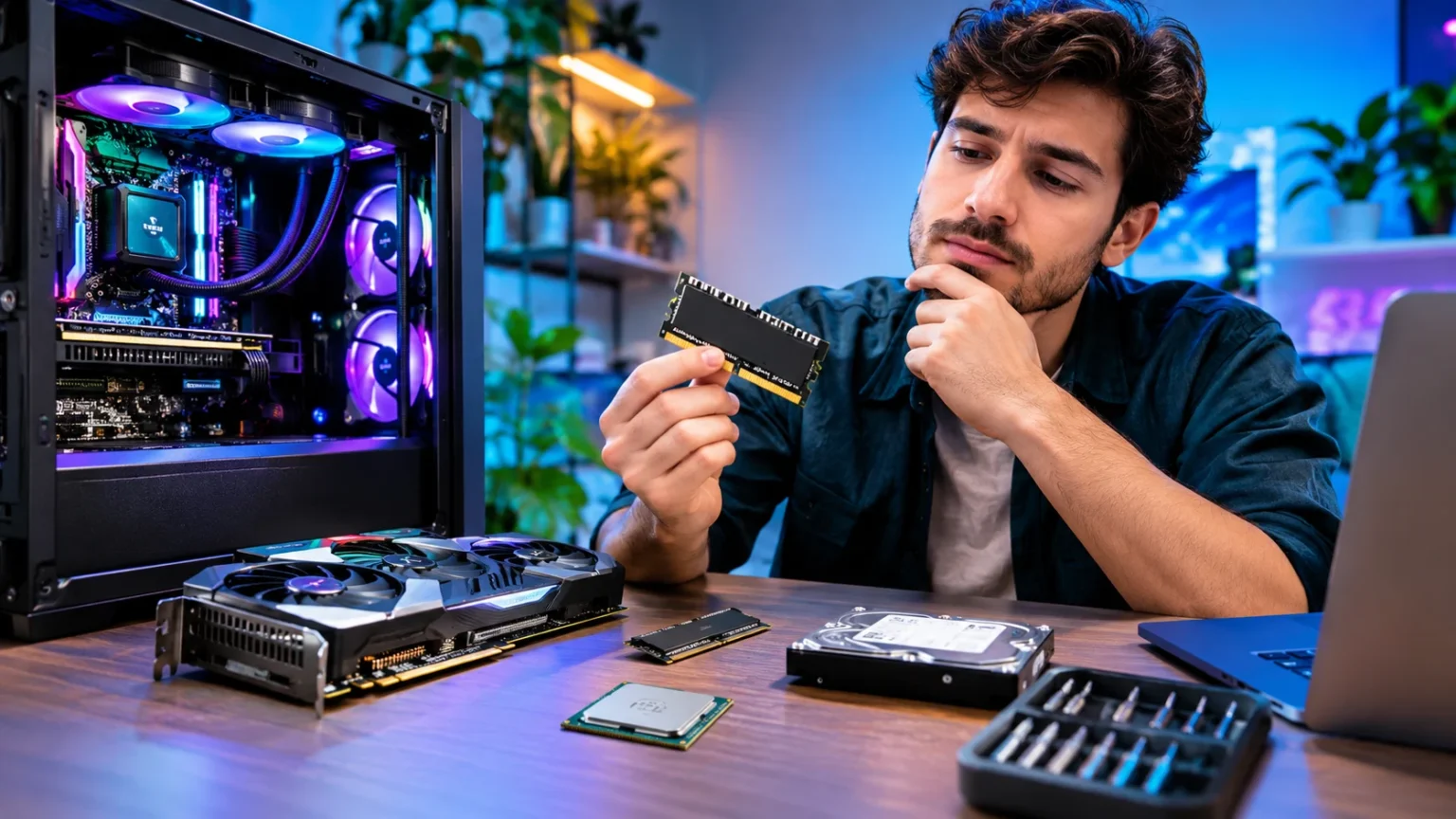
Computer hardware upgrades can improve speed, performance, and reliability without requiring you to buy an entirely new computer. Whether your PC takes too long to start, struggles with modern software, or cannot handle demanding games, upgrading the right components can make a noticeable difference. However, not every upgrade delivers enough value to justify its cost.
Many people replace their computers when a few hardware improvements could solve their performance problems. Installing more RAM, switching to a solid-state drive, or upgrading a graphics card may extend a computer’s useful life. The key is understanding which components need improvement and whether they are compatible with your existing system.
This guide explains when computer hardware upgrades are worth it, which components offer the biggest benefits, and how to avoid unnecessary spending. You will also learn how to compare upgrading versus replacing a computer, identify performance bottlenecks, and make smarter decisions based on your computing needs.
What Are Computer Hardware Upgrades?
Computer hardware upgrades involve replacing or improving physical components to increase a computer’s capabilities. Common examples include installing additional memory, upgrading the processor, replacing storage drives, or adding a more powerful graphics card. These changes can improve everyday responsiveness, multitasking, gaming performance, and productivity without replacing the entire system.
Unlike software updates, hardware upgrades directly change the physical equipment inside a computer. A software update may fix bugs, improve security, or optimize existing functions, while a hardware upgrade increases or changes the system’s available resources. Both approaches can improve performance, but they address different limitations and technical problems.
The value of an upgrade depends on the computer’s age, specifications, and intended use. A basic office computer may benefit greatly from additional RAM or faster storage, while a gaming PC might need a graphics card upgrade. Understanding your requirements helps determine whether investing in new computer components makes financial and practical sense.
Why Do Computers Need Hardware Upgrades?
Computers often become less suitable for demanding tasks as software requirements increase. Modern applications, operating systems, and creative tools may require additional memory, processing power, or storage capacity. Hardware that handled everyday activities comfortably several years ago might struggle when multiple programs operate simultaneously or newer applications demand more resources.
Performance problems can also develop because of aging components, limited storage space, or insufficient system resources. Slow startup times, frequent freezing, and delayed application responses may indicate that certain components are struggling. However, these symptoms can also result from malware, overheating, software conflicts, or unnecessary background applications rather than outdated hardware.
Upgrading selected components helps address genuine hardware limitations while retaining equipment that still works properly. This approach can reduce electronic waste, minimize replacement costs, and improve the overall computing experience. Before purchasing anything, identify the specific performance problem and confirm whether a hardware improvement would realistically solve it.
Signs Your Computer Needs a Hardware Upgrade
One common warning sign is consistently slow performance during ordinary activities such as browsing, opening files, or running productivity software. Applications may take longer to load, and switching between programs can become frustrating. If system monitoring shows memory or storage activity repeatedly reaching high levels, upgrading the affected component may help.
Another warning sign is difficulty running applications that previously worked smoothly or meeting the requirements of newer software. Video editing programs, modern games, and design applications often demand substantial computing resources. Low frame rates, long rendering times, and application crashes may indicate insufficient hardware, although troubleshooting should confirm the underlying cause.
Limited storage capacity can also indicate that your computer needs attention. When available disk space becomes extremely low, installing software, saving documents, and performing updates may become difficult. Expanding storage can solve capacity problems, while moving from a traditional hard drive to an SSD may also noticeably improve system responsiveness.
Is Upgrading Computer Hardware Worth the Money?
Computer hardware upgrades are often worthwhile when they solve a clear performance problem at a reasonable cost. For example, replacing an older mechanical hard drive with an SSD can make everyday computer use substantially more responsive. Similarly, adding compatible RAM can reduce slowdowns when insufficient memory causes frequent data swapping.
However, upgrading becomes less attractive when multiple expensive components require replacement. Installing a modern processor might also require a new motherboard, compatible memory, and improved cooling. These additional expenses can make upgrading nearly as costly as purchasing a newer computer with better overall specifications and manufacturer support.
The best decision depends on expected performance improvements, total installation costs, and the remaining life of existing components. Consider whether the computer will meet your needs for several more years after the upgrade. If performance gains are limited or compatibility problems are significant, purchasing a replacement system may provide better long-term value.
RAM Upgrades: A Simple Way to Improve Multitasking
Random Access Memory, commonly called RAM, temporarily stores information that active applications need to access quickly. When a computer has insufficient memory, the operating system may rely heavily on slower storage, causing noticeable delays. Adding compatible RAM can make multitasking smoother, especially when running browsers, office applications, communication tools, and creative software together.
The amount of memory you need depends on your workload and operating system requirements. Many everyday users find 16GB comfortable, while demanding editing projects, virtual machines, and professional applications may benefit from 32GB or more. Some basic tasks can operate with less memory, so purchasing additional capacity is not automatically necessary.
Before upgrading, check your motherboard’s supported memory type, maximum capacity, available slots, and speed specifications. Laptop memory may be soldered permanently, preventing replacement or expansion. Also, remember that increasing RAM will not substantially improve performance when memory capacity is already sufficient and another component causes the slowdown.
SSD Upgrades: Faster Storage and Better Responsiveness
Replacing a traditional hard disk drive with a solid-state drive is often one of the most noticeable upgrades for older computers. SSDs access data electronically rather than relying on moving mechanical parts. This design generally provides faster startup times, quicker application launches, improved file access, and a more responsive everyday computing experience.
Different SSD technologies offer varying performance levels and compatibility requirements. SATA SSDs provide significant improvements over traditional hard drives, while compatible NVMe drives can deliver much higher transfer speeds. However, the advantage of faster NVMe storage may be less noticeable during basic browsing and office work than during large file transfers.
Before buying a drive, confirm the computer’s storage interface, physical space, and supported drive formats. You should also consider storage capacity, reliability, warranty coverage, and data migration requirements. Backing up important files before replacing or cloning a drive helps protect personal information and reduces the consequences of installation problems.
CPU Upgrades: When More Processing Power Matters
The Central Processing Unit, or CPU, handles calculations and instructions required by operating systems and applications. A faster processor can improve performance in CPU-intensive tasks such as software compilation, data processing, simulation, and certain creative workloads. However, upgrading the CPU is not always the most affordable or straightforward way to improve a computer.
Processor compatibility depends on the motherboard socket, chipset, firmware support, and power requirements. A newer CPU may use a different socket or require a BIOS update before installation. Some processor upgrades also require better cooling or a motherboard replacement, increasing the total expense beyond the processor’s purchase price.
CPU upgrades are most valuable when the existing processor consistently limits important applications. Performance monitoring, application benchmarks, and software requirements can help identify whether additional processing power would be useful. If the motherboard supports only older processors, replacing the computer or upgrading the entire platform may deliver greater long-term benefits.
Graphics Card Upgrades for Gaming and Creative Work
A graphics card, also called a GPU, processes graphical information and supports many parallel computing workloads. Dedicated graphics cards can improve gaming performance, video rendering, 3D modeling, and certain machine learning applications. Upgrading the GPU may provide significant benefits when existing graphics hardware cannot meet the performance requirements of demanding software.
Gaming improvements depend on resolution, graphics settings, processor performance, and the capabilities of the replacement GPU. A more powerful graphics card may increase frame rates or support more demanding visual effects. However, a slow processor can limit GPU performance, particularly in games that rely heavily on CPU calculations.
Before purchasing a graphics card, examine power supply capacity, available connectors, case dimensions, and cooling airflow. Check that your software supports the GPU’s capabilities and required drivers. For basic browsing, document editing, and streaming, integrated graphics may already provide sufficient performance, making an expensive dedicated GPU unnecessary.
Motherboard Upgrades: Should You Replace the Mainboard?
The motherboard connects the processor, memory, storage devices, expansion cards, and other computer components. Its specifications determine which hardware upgrades are compatible with your system. Replacing the motherboard can provide access to newer processor generations, additional connectivity options, improved expansion capabilities, and support for more recent memory technologies.
However, motherboard replacement is usually more complicated than upgrading RAM or storage. Different boards may require new processors, memory modules, cooling hardware, or power connections. Operating system activation, driver compatibility, and physical case dimensions may also require attention when changing the computer’s mainboard.
A motherboard upgrade makes sense when the current platform prevents important improvements or lacks essential connectivity features. It may also be necessary when the existing motherboard fails. If several major components must change together, compare the total platform upgrade cost with the price and capabilities of a complete replacement computer.
Power Supply Upgrades: Reliability and Compatibility
The power supply unit converts electrical power into the voltages required by computer components. A reliable PSU supports system stability and helps protect compatible hardware through appropriate electrical protections. Upgrading the power supply may become necessary when installing components that require more power than the existing unit can safely provide.
A powerful graphics card or high-performance processor can increase electricity requirements under demanding workloads. However, choosing a power supply solely by its advertised wattage is not enough. Build quality, efficiency, appropriate connectors, manufacturer reputation, and protection features are important considerations when evaluating a replacement unit.
Before upgrading, calculate approximate system power requirements and allow reasonable capacity for demanding operating conditions. Make sure the replacement physically fits the computer case and supports all required connections. Power supplies contain hazardous internal electrical components, so users should never open a PSU enclosure or attempt internal repairs without appropriate professional expertise.
Cooling System Upgrades: Preventing Overheating
Computer components generate heat during operation, especially when performing demanding tasks. If temperatures become excessive, processors and graphics cards may reduce their operating speeds to protect themselves. This behavior, known as thermal throttling, can cause slower performance even when the installed hardware is otherwise powerful enough.
Improving cooling may involve cleaning dust filters, optimizing airflow, replacing faulty fans, or installing a compatible CPU cooler. Some advanced systems use liquid cooling, although it is not essential for most everyday computers. Good airflow and appropriate cooling capacity are generally more important than choosing the largest or most expensive cooling solution.
Before spending money on cooling upgrades, monitor component temperatures and check whether actual thermal throttling occurs. Dust buildup, blocked vents, and incorrectly installed coolers can contribute to overheating. Addressing these basic problems first may restore performance without requiring expensive additional cooling equipment or unnecessary component replacements.
Laptop Hardware Upgrades: What Can You Replace?
Laptop upgrades are often more limited than desktop computer upgrades because manufacturers prioritize compact designs and integrated components. Many laptops allow storage replacement, and some support memory expansion. However, processors and graphics chips are commonly soldered directly to the motherboard, making conventional upgrades impractical or impossible.
The available options vary considerably between laptop models and manufacturers. Certain devices include accessible RAM slots and replaceable SSDs, while others use permanently attached memory and storage. Manufacturer documentation, repair manuals, and official specifications provide useful information about supported upgrades and potential installation restrictions.
Before opening a laptop, consider warranty terms, component accessibility, battery safety, and technical difficulty. Some improvements require specialized tools or professional installation. If an older laptop lacks upgradeable components and struggles with essential applications, replacing it may offer better performance, battery efficiency, and reliability than attempting extensive modifications.
Desktop vs Laptop Upgrades: Which Offers More Flexibility?
Desktop computers generally provide greater hardware flexibility because their components are easier to access and replace. Standard desktop systems often support additional memory, storage devices, dedicated graphics cards, and processor replacements. This flexibility can make desktops attractive for users who expect their computing requirements to change over time.
Laptops prioritize portability, energy efficiency, and compact construction, which can restrict component upgrades. Some models support simple SSD or memory replacements, but major modifications are usually difficult. Gaming laptops may contain powerful components, yet their graphics and processing hardware are commonly not replaceable in the same way as desktop parts.
Neither computer type is automatically the better choice for every user. Someone who needs portability may prefer a laptop despite limited upgrade options, while a desktop can provide more expansion flexibility. When choosing new equipment, consider future repairability and component accessibility alongside immediate performance, convenience, and purchase price.
How to Identify Computer Performance Bottlenecks
A performance bottleneck occurs when one component restricts the speed of an application or system operation. For example, insufficient RAM can force frequent storage access, while an overloaded processor may delay complex calculations. Identifying the limiting component helps prevent unnecessary purchases and makes computer upgrade planning more effective.
Built-in monitoring utilities can provide useful information about CPU activity, memory consumption, disk usage, and graphics processing. Windows Task Manager and system monitoring tools on other operating systems reveal how resources behave during normal workloads. Observe performance while running the applications that cause problems rather than relying exclusively on idle system readings.
High resource usage alone does not always prove that an upgrade is necessary. Some demanding programs naturally use available hardware efficiently, and short activity spikes are normal. Compare observed behavior with application requirements, temperature readings, and performance benchmarks to determine which component, if any, genuinely limits the computing experience.
How Much Do Computer Hardware Upgrades Cost?
Hardware upgrade costs vary according to component type, performance level, compatibility, and market availability. Basic memory and storage improvements are often more affordable than replacing processors, graphics cards, or motherboards. Premium components designed for professional workloads or demanding gaming can increase expenses substantially, especially when several parts require replacement.
The purchase price is only one part of the overall upgrade budget. Installation services, additional cooling, upgraded power supplies, replacement cables, and data migration may create extra costs. Some upgrades also require software reactivation or specialized troubleshooting, particularly when replacing core components or transferring an operating system.
To evaluate value, compare the complete cost of an upgrade with the performance improvement it is expected to provide. Look at benchmark results for relevant applications rather than relying on product marketing alone. An affordable upgrade that solves a frustrating daily problem may offer better value than an expensive component delivering improvements you rarely notice.
Upgrading vs Buying a New Computer: Which Is Better?
Upgrading is often the better choice when the existing computer remains reliable and requires only one or two improvements. Adding memory or installing an SSD can extend useful service life at a relatively manageable cost. This option also allows users to retain familiar equipment, existing accessories, and a comfortable working environment.
Buying a new computer becomes more attractive when several major components are outdated, incompatible, or failing. Newer systems may provide improved energy efficiency, modern connectivity, stronger performance, and longer manufacturer support. A replacement may also include an updated warranty, reducing concerns about aging hardware and unexpected repair expenses.
Before deciding, calculate the cost of necessary upgrades and compare it with suitable replacement computers. Include expected reliability, software compatibility, performance requirements, and long-term support. The better choice is not necessarily the cheapest immediate purchase, but the option that provides dependable performance and reasonable value throughout its expected service life.
Common Computer Hardware Upgrade Mistakes to Avoid
One of the most common mistakes is purchasing components without checking system compatibility. Memory generation, processor socket type, storage interface, power connectors, and physical dimensions can prevent installation. Reviewing manufacturer specifications before ordering replacement parts helps avoid wasted money, installation delays, and unnecessary returns.
Another mistake is assuming that the most expensive component will automatically produce the best improvement. Installing a premium GPU will not solve insufficient memory during office work, just as adding RAM cannot fix every processor limitation. Understanding the actual performance bottleneck allows you to prioritize upgrades that address your needs.
Users sometimes overlook data protection, cooling requirements, and installation complexity during the upgrade process. Failing to back up files before replacing storage can create unnecessary risks, while poor installation may cause stability problems. Following manufacturer instructions, using compatible components, and seeking qualified technical assistance when necessary can reduce these problems.
How to Plan a Successful Computer Hardware Upgrade
Start by identifying your computer’s current specifications and the activities that need better performance. Record the processor model, installed RAM, storage type, graphics capabilities, and motherboard specifications. Determine whether the main goal is faster everyday operation, improved gaming, additional storage space, or stronger performance in professional applications.
Next, establish a realistic budget and research compatible replacement components. Compare meaningful performance benchmarks, warranty coverage, power requirements, and installation complexity. Prioritize improvements that resolve verified limitations rather than purchasing several upgrades simply because newer hardware is available.
Finally, prepare for installation by backing up important files and reviewing manufacturer guidance. Check whether firmware updates, drivers, or operating system changes will be necessary. After installation, test performance, monitor temperatures, and confirm system stability to make sure the upgrade produces the expected improvements.
Are Computer Hardware Upgrades Better for the Environment?
Extending a computer’s useful life can reduce the need to manufacture and purchase replacement equipment. Producing electronic devices requires raw materials, manufacturing energy, and transportation resources. Replacing only necessary components can sometimes reduce environmental impact compared with discarding an otherwise functional computer.
However, hardware upgrades also require newly manufactured components and can generate electronic waste when old parts are discarded. Their environmental value depends on how much additional service life they provide and whether removed components are reused or recycled. Energy consumption differences between old and new equipment may also influence the overall comparison.
A practical approach is to maintain computers carefully, upgrade components only when beneficial, and reuse functioning equipment whenever possible. Unwanted parts should be handled through appropriate electronics recycling programs. Responsible upgrade decisions combine performance needs, financial value, repairability, and environmental considerations rather than focusing only on obtaining newer technology.
Conclusion
Computer hardware upgrades can be a worthwhile investment when they address specific performance problems and extend the useful life of a reliable system. Improvements such as additional RAM, faster SSD storage, and more capable graphics hardware can make computing noticeably more efficient. However, the benefits depend on your current specifications, software requirements, and component compatibility.
Before spending money, identify the performance bottleneck and compare the total upgrade cost with suitable replacement computers. Consider installation expenses, future software support, hardware reliability, and expected performance improvements. Avoid replacing components simply because newer versions exist, especially when your current computer already handles everyday tasks comfortably.
Ultimately, the smartest hardware upgrade is the one that improves your computing experience without creating unnecessary expenses. Whether you use your computer for school, work, gaming, or creative projects, thoughtful planning helps you get more value from existing equipment. Understanding when to upgrade and when to replace ensures better long-term decisions.
Frequently Asked Questions
Is it worth upgrading an old computer?
Yes, upgrading an old computer can be worthwhile if its processor and other essential components remain suitable. Adding RAM or an SSD may improve usability without the expense of replacing the entire system.
What computer hardware should I upgrade first?
The best first upgrade depends on your computer’s main performance limitation. An SSD often improves responsiveness on older systems, while additional RAM can help when insufficient memory causes slowdowns during multitasking.
Can hardware upgrades make my computer faster?
Yes, compatible hardware upgrades can improve computer speed when an existing component limits performance. Faster storage, additional memory, or a stronger processor can help, depending on the tasks you perform and your system’s specifications.
Is upgrading a PC cheaper than buying a new one?
Upgrading is often cheaper when only one or two components need improvement. However, replacing the processor, motherboard, memory, and power supply together may cost enough to make a new computer more economical.
How often should computer hardware be upgraded?
There is no fixed upgrade schedule for computer hardware. Consider upgrading when your system no longer meets your needs, performance problems are confirmed, or essential software requirements exceed the capabilities of existing components.