



Windows Media Player can open many common audio and video formats, but FLV is not normally supported in its standard setup. Microsoft states that Windows Media Player does not include the codecs required for FLV playback. As a result, an FLV file may produce an unsupported-format or missing-codec error when opened directly. Users can solve the problem by converting the file, installing a trusted codec or using another media player.
What Is an FLV File?
FLV stands for Flash Video. It is a container format that was widely used to deliver video through Adobe Flash Player on websites and browser-based services. It became popular because it could provide acceptable quality while keeping files manageable for online delivery.
Adobe ended support for Flash Player on December 31, 2020. Modern websites now rely mainly on HTML5 video and formats such as MP4 and WebM. However, many people still have older FLV tutorials, recordings and archived web videos stored on computers.
Why Windows Media Player May Not Open FLV
A media file includes a container and one or more encoded streams. FLV is the container, while the video and audio inside it may use different codecs. Windows Media Player must recognise both the container and the codecs to play the file correctly.
Because native FLV codec support is normally unavailable, the player may reject the file. Playback can vary between computers if one system has additional codec software installed. For most users, it is safer to expect that FLV will not play directly without extra support.
Convert FLV to a More Compatible Format
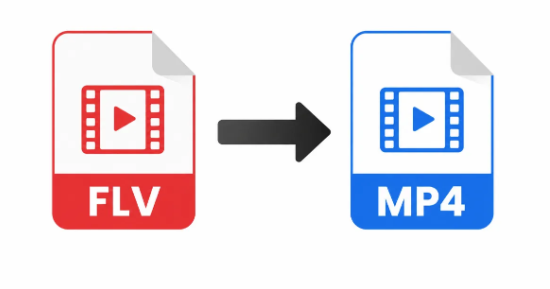
Conversion is usually the most practical solution because it creates a file that works with more modern devices and applications. MP4 is generally the most suitable output for playback, sharing, uploading, and editing. WMV may also be useful in a Windows-based workflow.
Users can consider Ahaconvert as a browser-based option for changing an FLV file into a more accessible format. The usual process is to upload the source, select MP4 or another supported output, review the settings, start the conversion and download the finished video. AhaConvert’s MP4 tool lists FLV among its supported input formats.
Choose a Dedicated FLV Tool
A dedicated FLV Converter can provide a focused workflow when the original file uses the .flv extension. Users should keep the resolution and quality reasonably close to the source and avoid selecting an unnecessarily low bitrate.
Aggressive compression may create a smaller file, but it can also cause blur, blockiness or loss of detail. After conversion, play the complete output and confirm that the picture, sound, duration and synchronisation are correct. Keep the original until the replacement has been tested.
Can Installing a Codec Help?
Installing an FLV-compatible codec may allow Windows Media Player to open certain files. This can be useful for someone who regularly works with a large FLV archive and wants to preserve the original format.
However, Microsoft warns that some codec packs can cause playback conflicts or other system problems. Codecs should therefore be downloaded only from reputable, official sources. Users must also confirm that the installed component supports the specific video and audio streams inside the FLV container.
For occasional playback, conversion is often simpler because it avoids permanent changes to the computer.
Can Another Media Player Open FLV?
Some third-party media players support FLV without requiring separate codec installation. This is convenient when the user only needs to watch the file once.
The disadvantage is that the original FLV may still be incompatible with phones, televisions, browsers, presentation systems or editing tools. Converting to MP4 is usually more practical when the video must be shared or reused across several devices.
Why Renaming the Extension Does Not Work
Changing a filename from .flv to .mp4 does not convert the video. The extension only helps the operating system identify the expected file type. The internal structure remains FLV, so Windows Media Player may still reject the renamed file.
A genuine conversion tool processes the media streams and creates a valid MP4, WMV or another supported output.
What If the File Still Does Not Play?
If conversion fails, the original file may be incomplete, damaged, encrypted, or protected. Try opening it in another compatible player to check whether the source is usable. Also confirm that the download finished, enough storage is available, the correct output was selected, and the converted file saved completely.
Conclusion
Windows Media Player does not normally play FLV files because it lacks built-in FLV codec support. Installing a trusted codec or using another player may help, but converting the file to MP4 is generally the easiest way to improve compatibility. Users should perform a real conversion rather than rename the extension, test the new file carefully and retain the original until the result is confirmed.