



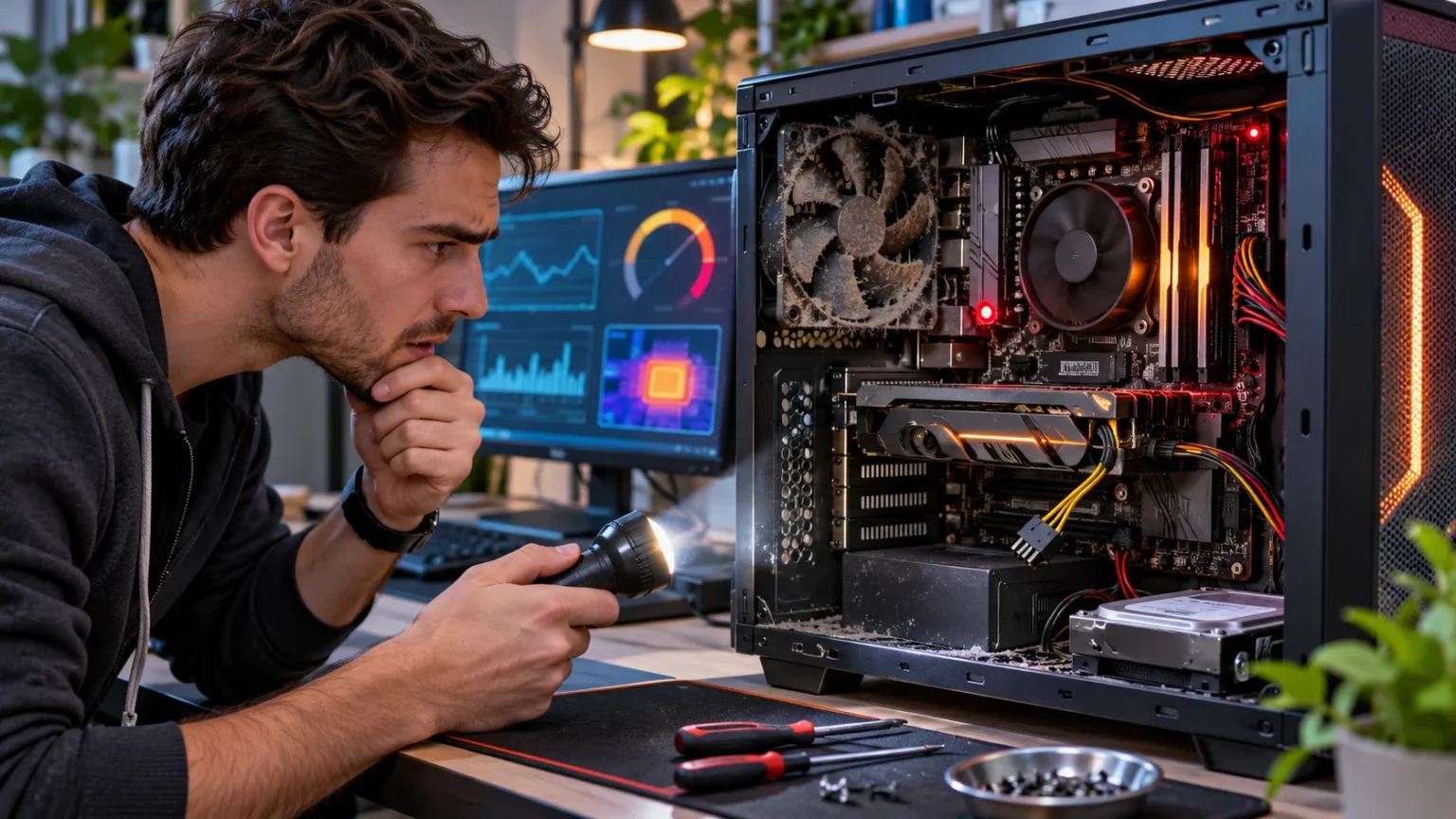
Computer hardware problems can develop gradually, often showing warning signs before a device stops working completely. Slow performance, unusual noises, overheating, and unexpected shutdowns may indicate issues with internal components. Recognizing these symptoms early can help prevent data loss, reduce repair costs, and extend the useful life of your computer.
Whether you use a desktop computer or laptop, understanding common hardware failure signs makes troubleshooting easier. Problems involving hard drives, memory, cooling fans, batteries, and power supplies can affect everyday activities. This guide explains computer hardware problems you can spot early, their possible causes, and practical steps to identify issues before they become more serious.
Why Identifying Computer Hardware Problems Early Matters
Computer hardware includes the physical components responsible for processing, storing, and displaying information. These parts experience normal wear, heat exposure, and electrical stress during everyday operation. Over time, certain components may become less reliable or stop functioning correctly. Recognizing unusual behavior can help users address potential problems before complete failure occurs.
Early detection is particularly important because hardware problems can sometimes lead to permanent data loss. A failing storage drive, for example, may become unreadable without much warning. Maintaining reliable backups reduces the risk of losing important files. Monitoring system behavior also helps users decide when professional inspection or component replacement may be necessary.
Identifying problems early can also prevent unnecessary spending on repairs. A dusty cooling system may require maintenance rather than an expensive component replacement. Similarly, loose external connections can sometimes explain display or peripheral issues. Understanding common warning signs allows users to make informed decisions instead of immediately assuming that the entire computer needs replacing.
Slow Computer Performance and Unexpected Freezing
A computer that suddenly becomes slower than usual may be experiencing a hardware-related problem. Insufficient memory, storage drive issues, and overheating can all contribute to reduced performance. However, software updates, background applications, and malware can produce similar symptoms. Comparing current behavior with the computer’s normal performance helps identify meaningful changes.
Frequent freezing is another warning sign that deserves attention. A system may stop responding while opening applications, transferring files, or performing demanding tasks. Faulty memory, unstable hardware, and storage problems are possible causes. Repeated freezes should not be ignored, especially when they occur alongside unusual noises or unexpected shutdowns.
Start by checking available storage space, running applications, and system resource usage. Built-in monitoring tools can show whether memory, processing, or storage resources are under unusual pressure. If the issue continues after basic software checks, hardware diagnostics may be helpful. Backing up important data before further troubleshooting is a sensible precaution.
Unusual Hard Drive Noises and Storage Problems
Traditional hard disk drives contain moving mechanical parts that can wear out over time. Repeated clicking, grinding, or unusual scraping sounds may indicate a mechanical problem. These noises are especially concerning when accompanied by slow file access or missing data. Solid-state drives operate differently and generally do not produce mechanical drive noises.
Other storage-related warning signs include corrupted files, failed transfers, and repeated operating system errors. Some computers may take unusually long to start or display messages indicating drive problems. These symptoms can result from storage hardware faults, although software corruption is another possibility. Identifying the exact cause may require appropriate diagnostic tools.
If you suspect a failing drive, prioritize protecting important files before attempting extensive troubleshooting. Avoid unnecessary stress on a drive producing abnormal mechanical sounds. Checking drive health information may provide useful clues, but health indicators cannot predict every failure. Professional assistance may be appropriate when a storage device contains valuable information that has not been backed up.
Computer Overheating and Cooling System Issues
Overheating is one of the most common computer hardware problems because electronic components generate heat during operation. Cooling fans, heatsinks, and ventilation systems help maintain suitable temperatures. When airflow becomes restricted or cooling components malfunction, internal temperatures may rise. Excessive heat can reduce performance and contribute to unexpected shutdowns.
Common overheating symptoms include unusually hot surfaces, loud fans, and significant performance drops during demanding activities. A laptop may become uncomfortable to use, while a desktop computer may suddenly restart under heavy workloads. These symptoms do not always indicate permanent damage. However, repeated overheating should be investigated to prevent additional problems.
Begin by ensuring that ventilation openings are clear and the computer is placed on a suitable surface. Avoid blocking laptop vents with blankets, pillows, or other soft materials. External dust can be removed carefully while the device is powered off. Internal cooling repairs should be handled by a qualified technician when they require opening electrical components or removing cooling assemblies.
Loud Computer Fans and Unusual Vibrations
Computer fans naturally change speed depending on system temperature and workload. However, sudden increases in noise during light activities may indicate cooling inefficiency or a developing fan problem. Dust accumulation and worn fan bearings can create rattling or buzzing sounds. Listening for changes in normal operating noise can help identify potential issues.
Excessive vibrations may also occur when a cooling fan becomes loose or damaged. In desktop computers, mechanical hard drives can contribute to vibration as well. The exact source may be difficult to identify without inspection. Continuing to operate a computer with severe mechanical noises can increase the risk of additional component problems.
Users should first check whether the noise occurs during demanding applications or ordinary tasks. Built-in temperature monitoring software may help determine whether increased fan speed is related to heat. If the sound remains unusual, professional cleaning or fan replacement may be necessary. Never place fingers or objects inside a running computer to investigate moving components.
Random Shutdowns and Unexpected Restarts
A computer that shuts down unexpectedly may be experiencing overheating, power supply problems, or unstable hardware. Sudden interruptions are especially concerning when they occur repeatedly without an obvious software explanation. Some systems automatically power off to protect components from excessive temperatures. Others restart because of electrical or hardware instability.
Unexpected restarts can also result from operating system updates, faulty drivers, or software errors. This makes it important to avoid assuming that every restart indicates physical damage. Reviewing system logs may reveal useful information about the timing and nature of an incident. Patterns involving heavy workloads or battery operation can provide additional clues.
If shutdowns become frequent, save important files and avoid relying on the computer for critical tasks until the cause is understood. Check external power connections and ensure adequate ventilation. Do not open or attempt to repair a computer power supply because internal components can retain dangerous electrical energy. Persistent power problems should be evaluated by a qualified technician.
RAM Problems and Frequent Application Crashes
Random access memory, commonly called RAM, temporarily stores information that active programs need. When memory becomes faulty, computers may experience crashes, freezes, or unexplained errors. Applications might close unexpectedly, and the operating system may become unstable. However, these symptoms can also result from software conflicts or insufficient available memory.
Some computers display blue-screen errors or other critical warnings when memory-related problems occur. Repeated failures during different applications may suggest a broader system issue. Faulty RAM is one possibility, but storage problems and unstable drivers can produce similar behavior. Reliable diagnosis requires more than observing a single error message.
Many operating systems include memory diagnostic tools that can help identify certain faults. Testing results should be interpreted carefully because no single diagnostic method detects every problem. Users unfamiliar with computer hardware should avoid removing internal memory modules without appropriate guidance. Professional testing may be worthwhile when repeated crashes continue despite routine software troubleshooting.
Graphics Card Problems and Screen Artifacts
Graphics processing units, or GPUs, handle visual rendering for displays, games, and other applications. Problems with a graphics card may cause distorted images, unusual colors, or repeated visual glitches. These issues are sometimes called graphical artifacts. However, defective monitors, damaged cables, and software drivers can also produce similar symptoms.
Another warning sign is repeated crashing during graphics-intensive activities. Games or design applications may freeze, close unexpectedly, or display driver errors. Excessive GPU temperatures can contribute to instability, especially when cooling systems are not functioning correctly. Monitoring performance and temperature changes may help identify whether hardware is involved.
Begin by checking external display cables and ensuring the graphics drivers are appropriate for your system. If possible, comparing behavior on another compatible monitor may help narrow down the problem. Avoid making complicated internal hardware adjustments without suitable expertise. Persistent visual artifacts or repeated graphics failures may require professional diagnosis.
Laptop Battery Problems You Should Notice Early
Laptop batteries gradually lose capacity through normal use and aging. One common warning sign is noticeably shorter battery life compared with previous performance. The computer may require more frequent charging even when daily activities remain similar. Battery wear is expected over time, but sudden changes can indicate a developing problem.
Other symptoms include unexpected shutdowns while operating on battery power or inaccurate charge readings. A laptop may display a high battery percentage before turning off without warning. Some devices provide built-in battery health reports that estimate remaining capacity. These reports can help users understand whether battery deterioration may explain reduced performance.
Physical battery swelling is a more serious warning sign that requires immediate attention. A swollen battery may cause the laptop casing, keyboard, or trackpad to lift or become distorted. Stop using and charging the device if swelling is suspected. Do not puncture, compress, or attempt to remove a damaged battery yourself; arrange professional handling instead.
Power Supply and Charging Problems
Power-related computer hardware problems can affect both desktop computers and laptops. Symptoms may include intermittent charging, unexpected power loss, or difficulty starting the device. Damaged external cables, faulty adapters, and unstable electrical connections are possible causes. Identifying changes in charging behavior can help reveal problems before the computer becomes unusable.
For laptops, a charging indicator that repeatedly connects and disconnects may suggest an issue with the adapter, cable, or charging port. Some devices also display warnings when an incompatible charger is connected. Using the correct manufacturer-approved power specifications is important. Continued operation with damaged charging equipment can create electrical and overheating hazards.
Desktop power supply issues may produce unpredictable shutdowns or prevent a computer from starting. However, similar symptoms can involve the motherboard or other components. Users should avoid opening sealed power supplies or repairing electrical circuits. If cables become unusually hot, emit odors, or show visible damage, disconnect power safely and seek professional assistance.
Motherboard Failure Warning Signs
The motherboard connects major computer components, including the processor, memory, storage devices, and expansion hardware. Problems affecting this board can produce several different symptoms. A computer may fail to start, lose connectivity, or experience repeated hardware detection errors. Because many components rely on the motherboard, identifying a specific fault can be challenging.
Some systems provide diagnostic lights or audible beep codes when startup problems occur. These indicators may help identify issues involving memory, graphics, or other connected hardware. Their meanings differ between manufacturers and computer models. Consulting the official device documentation is important before interpreting diagnostic signals.
Motherboard problems can sometimes result from aging components, liquid exposure, electrical faults, or physical damage. However, similar symptoms may arise from a defective power supply or another connected component. Professional diagnosis can help avoid replacing expensive hardware unnecessarily. Users should not attempt circuit-level motherboard repairs without specialized training and appropriate safety equipment.
USB Ports and Peripheral Connection Issues
USB ports allow computers to communicate with keyboards, mice, storage devices, and other accessories. When a port develops a problem, connected devices may disconnect unexpectedly or stop responding. Physical wear, damaged connectors, and software issues can all contribute. Recognizing whether the problem affects one device or several can help narrow down the cause.
A useful first step is testing a known-working accessory with another compatible port. If a device works elsewhere, the original port may require inspection. However, operating system settings and driver problems can also affect USB communication. Avoid repeatedly forcing connectors into ports that feel damaged or unusually resistant.
Visible damage, loose connections, or signs of overheating should receive appropriate attention. Using damaged ports may lead to additional electrical or mechanical problems. External USB hubs can provide alternative connections in some circumstances, but they do not repair defective hardware. Persistent connection failures may require professional inspection or replacement of the affected component.
Monitor Flickering and Display Problems
Monitor flickering can interrupt work and make a computer uncomfortable to use. Common causes include damaged cables, incorrect display settings, graphics driver issues, and monitor hardware faults. Some displays may also experience intermittent brightness changes or unexpected blank screens. These symptoms should be evaluated before assuming that the monitor itself needs replacing.
Start by checking whether the video cable is securely connected and compatible with the display. Review the screen’s refresh rate and resolution settings to ensure they match supported specifications. Testing another compatible cable may help identify an external connection problem. Any visible cable damage should be addressed without attempting unsafe electrical repairs.
If flickering continues across different cables and computers, the display hardware may be responsible. Problems involving the monitor’s internal electronics generally require professional servicing. Avoid opening the monitor because internal components may retain hazardous electrical charges. Replacing an aging display may be more practical when repair costs approach the price of suitable equipment.
Strange Smells and Physical Hardware Damage
Unusual smells coming from a computer can indicate overheating, damaged electrical components, or other physical problems. A persistent burning odor is particularly concerning and should never be ignored. Unlike ordinary fan noise or temporary slowdowns, electrical smells can indicate an immediate safety risk. Prompt action may help prevent additional equipment damage.
If a computer produces smoke, sparks, or a strong burning smell, stop using it immediately. Disconnect the power only if doing so is safe, and avoid touching damaged or overheated components. Move away from the device if conditions appear hazardous. Seek qualified professional assistance rather than attempting to investigate electrical damage yourself.
Other warning signs include cracked casings, damaged charging ports, liquid exposure, and visibly distorted laptop surfaces. These issues may affect the reliability and safety of internal components. Even when the computer continues working, physical damage deserves careful evaluation. Early professional inspection can help determine whether continued use is appropriate.
How to Check Computer Hardware Health
Regular hardware monitoring can help identify developing problems before they cause major disruptions. Many computers provide built-in tools for checking storage health, memory behavior, battery condition, and system performance. These features can reveal unusual changes over time. However, diagnostic results should be considered alongside actual symptoms and operating conditions.
Keeping track of temperature changes, unexpected restarts, and storage warnings can provide useful information during troubleshooting. Users may also review system event logs for recurring errors. Manufacturer-supported diagnostic tools are often a practical starting point. Avoid installing unfamiliar utilities from untrusted websites because they may introduce security or reliability risks.
An important part of hardware health monitoring is maintaining current backups of valuable files. Diagnostics cannot prevent every unexpected failure, and storage devices may stop working without obvious warning signs. Keeping backups on a separate device or trusted cloud service reduces potential data loss. Routine checks combined with reliable backups provide a stronger foundation for computer maintenance.
Simple Ways to Prevent Computer Hardware Problems
Preventive maintenance can reduce many common computer hardware problems, although it cannot eliminate normal wear or unexpected failures. Keeping ventilation openings clear helps cooling systems work more effectively. Placing laptops on stable surfaces also supports airflow during everyday use. Regular external cleaning helps prevent excessive dust accumulation around accessible vents and connections.
Handling computers carefully is another important part of extending hardware life. Avoid pulling cables by their wires, placing excessive pressure on screens, or exposing devices to liquids. Use compatible charging equipment and protect electronics from unstable electrical conditions. These simple habits can reduce unnecessary physical and electrical stress.
Software maintenance also supports hardware reliability because operating systems and drivers manage communication between components. Installing appropriate updates can help resolve compatibility issues and improve stability. Regularly reviewing storage capacity and system performance may reveal problems before they become disruptive. Combining careful handling, maintenance, and backups helps keep computers dependable for longer.
When Should You Repair or Replace Computer Hardware?
Deciding whether to repair or replace computer hardware depends on the component, device age, and severity of the problem. Minor issues such as external cable damage or worn accessories may be inexpensive to address. More complex failures involving motherboards or graphics components can require costly repairs. Understanding the likely problem helps guide a practical decision.
Repair may be worthwhile when the computer otherwise meets your performance needs and replacement parts are available. For older devices, repeated failures and limited manufacturer support may make replacement more reasonable. Compare estimated repair costs with the price of a suitable alternative. Consider data transfer, software compatibility, and warranty coverage before making a final decision.
Some symptoms require immediate professional attention regardless of the computer’s value. Swollen batteries, smoke, burning smells, and significant electrical damage present potential safety hazards. Avoid continuing to use equipment in these conditions. For less urgent problems, a qualified technician can help determine whether repair is practical or replacement offers better long-term value.
Conclusion
Computer hardware problems often begin with warning signs such as unusual noises, slow performance, overheating, unexpected shutdowns, and connection failures. Recognizing these symptoms early can help users protect important information and avoid unnecessary disruptions. However, similar symptoms may result from software or configuration issues. Accurate troubleshooting is important before deciding which components require attention.
Regular maintenance, careful handling, and appropriate monitoring can improve computer reliability. Keeping ventilation areas clear, using compatible accessories, and paying attention to performance changes are useful everyday habits. Reliable data backups provide essential protection against unexpected storage failure. When hardware problems involve electrical hazards or complicated internal components, professional assistance is the safer choice.
Understanding computer hardware problems you can spot early allows you to respond more confidently when unusual behavior occurs. Small issues may require simple adjustments, while serious faults need professional diagnosis or replacement. Consistent preventive care can extend the useful life of your equipment. Most importantly, addressing warning signs promptly helps maintain a safer, more dependable computing experience.
Frequently Asked Questions
What are the most common computer hardware problems?
Common computer hardware problems include overheating, failing storage drives, faulty RAM, battery deterioration, power supply issues, and damaged ports. Symptoms may include slow performance, freezing, unexpected shutdowns, and unusual noises.
How can you tell if computer hardware is failing?
Warning signs include repeated crashes, strange mechanical sounds, overheating, display glitches, and unreliable charging. Built-in diagnostic tools can provide useful information, although professional testing may be needed to confirm a fault.
Can computer hardware problems cause slow performance?
Yes, overheating, insufficient memory, and failing storage devices can reduce computer performance. However, software problems and background applications may create similar symptoms, so careful troubleshooting is important before replacing hardware.
How often should you check your computer hardware?
Reviewing system performance and checking for unusual symptoms regularly is helpful. More detailed inspections can be performed when problems appear or during routine maintenance. Important files should always have reliable backups.
Is it better to repair or replace faulty computer hardware?
The best choice depends on repair costs, device age, component availability, and overall reliability. Minor problems may be inexpensive to repair, while repeated failures or extensive damage can make replacement more practical.