



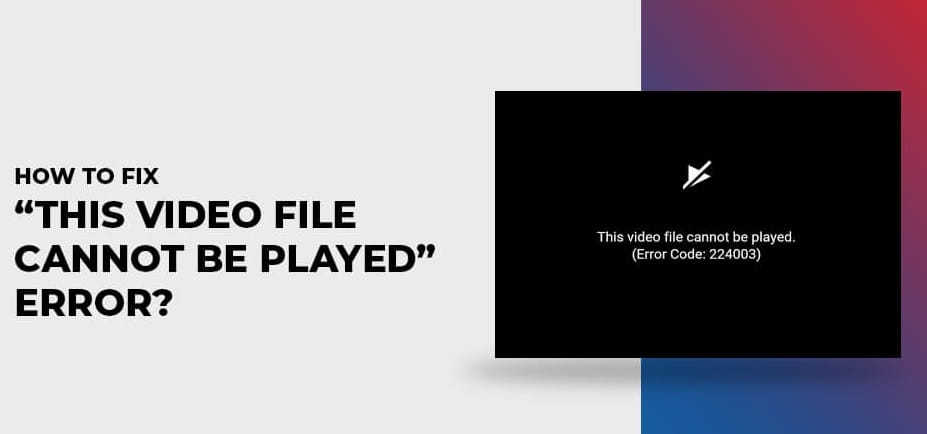
How to Fix “Video File cannot Be Played” Issue in Different Scenarios?
In today’s digital world, video files have become an integral part of our lives —whether we’re consuming content for information or entertainment. You can easily stream videos on YouTube, social media platforms, or watch recorded videos on your mobile or computer. However, there are instances when you may encounter a frustrating issue: “Video File Cannot Be Played.”
Such a troublesome error can occur at any time. Whether the problem is related to your video file or video player incompatibility, several fixes are available to address the issue. This guide covers common causes and solutions for the “Video File Cannot Be Played” error on various devices and platforms. Let’s get started!
Understanding Causes of the “Video File Cannot Be Played” Error
Before applying any method to fix this issue from your end, it’s important to find the exact cause of the same. Some main reasons why your video file may not play properly include:
- Unsupported format or codec: If the video player or installed codec is not compatible with the video file format, the video won’t play properly.
- Corrupted File: Video files often get corrupted due to missing, altered, or unreadable video data, which can prevent them from playing correctly.
- Browser or Cache Issues: Temporary or corrupted cache data may interfere with video playback, which in turn causes errors while loading or playing videos.
- Hardware acceleration conflicts: Any problem with GPU decoding or hardware acceleration can disrupt video playback and cause stuttering, freezing, or complete playback errors.
- Network issues: Streaming videos with poor connectivity or restrictive firewalls can interrupt loading.
Quick Methods to Fix the “Video File Cannot Be Played” Error
Whether you are playing a video file on any web browser or your device’s in-built video player, there are several fixes available to eliminate the “Video File Cannot Be Played” error. Try the following methods step by step to restore smooth playback:
Method 01: Clear Browser Cache and Cookies
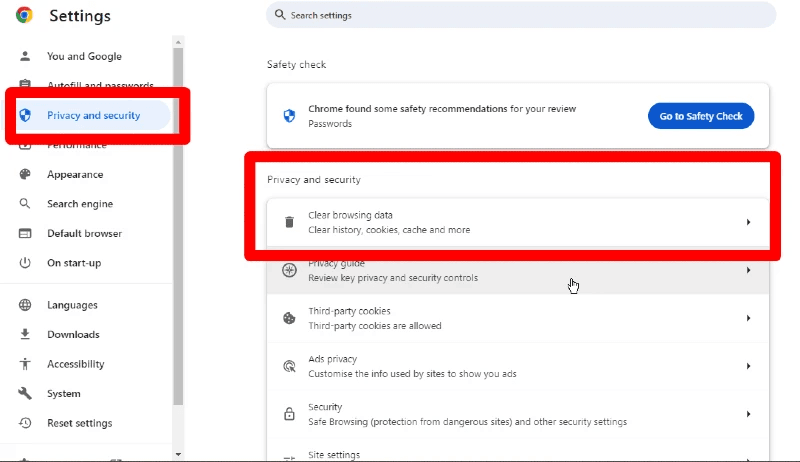
If you are streaming videos online and getting this video-related error in your web browser, clearing old cache and corrupted cookies can help you fix video playback issues. For this, you can follow the below steps (here we are using Chrome browser):
- Firstly, open the Chrome web browser on your computer.
- Click the three dots in the top-right corner and select Settings.
- Go to Privacy and Security >Clear browsing data.
- Now, select Cached images and files and Cookies and other site data.
- Lastly, click Clear data and wait till the process completes.
Once done, restart your device and try reloading the video. If the issue keeps existing, you can try updating your web browser.
Method 02: Update the Web Browser
An outdated web browser doesn’t support modern HTML5 video codecs and might cause problems while streaming videos online. To avoid such issues, try updating the browser on your device. For this:
- Open the web browser you are using (Chrome/Edge/Firefox), go to Help → About.
- The browser will automatically initiate a version check for available updates and download them if found.
- After completion of the update process, restart the browser to apply the changes.
Method 03: Repair Corrupted Files Using VLC Player
There may be instances where your video file is corrupt or damaged. In such a case, you can use Windows’ VLC player to repair and fix videos. VLC not only allows you to play video files but also to repair damaged or partially corrupted videos in several ways.
If you are getting the “Video File Cannot Be Played” error while playing videos in VLC media player, use its conversion and repair features to fix the issue. All you have to do is:
- Launch VLC media player on your device and go to Media >Convert / Save.
- Click Add and upload the video for which you are getting an error, then click Convert / Save.
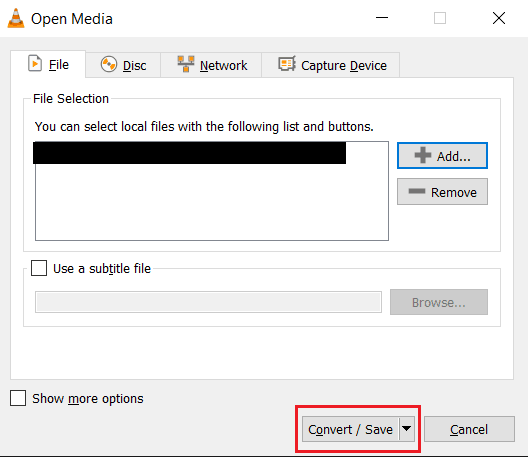
- Now, select a suitable conversion profile (e.g., H.264 + MP3 (MP4)).
- Also, add the destination filename and location where you want to save the repaired video.
- Click Start to initiate the repair process. Once completed, play the new file to verify.
Method 04: Fix Error Using Video Repair Software
If you’re getting the “Video File Cannot Be Played” error even after trying the aforementioned fixes, then professional video repair tools like Stellar Repair for Video can help you. This all-in-one video repair tool can help you fix video files corrupt or damaged due to interrupted downloads, improper file transfers, virus attacks, or even software glitches. You can use this tool to repair video files of several file formats, including MP4, MOV, AVI, MKV, and more.
The Stellar Repair for Video tool completely scans your device for corrupt videos, identifies damaged sections, and reconstructs them so the video can be played smoothly again. To repair your corrupt videos using this video repair software, you have to:
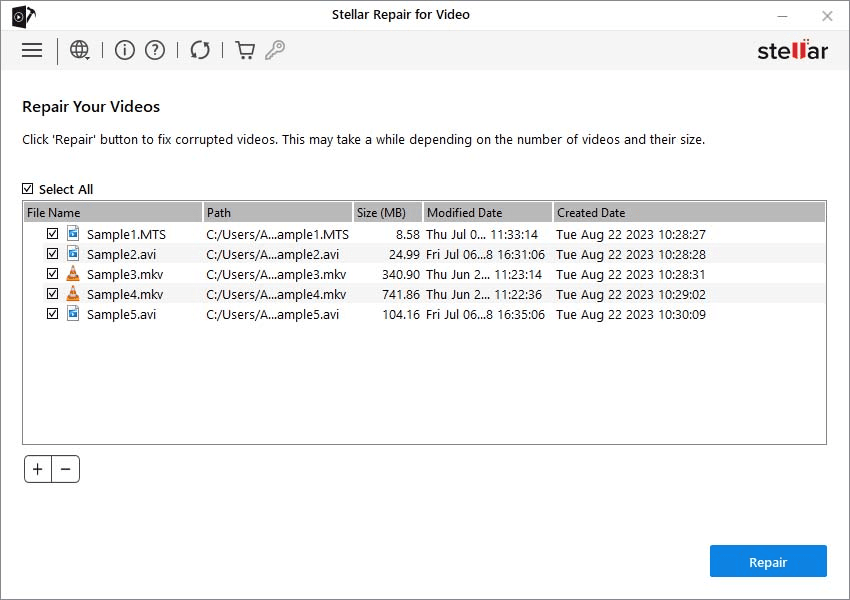
Step 1: Download and install the Stellar Repair for Video tool from its official website on your device. From the homepage, click Add Videos to upload the video files that are showing the error.
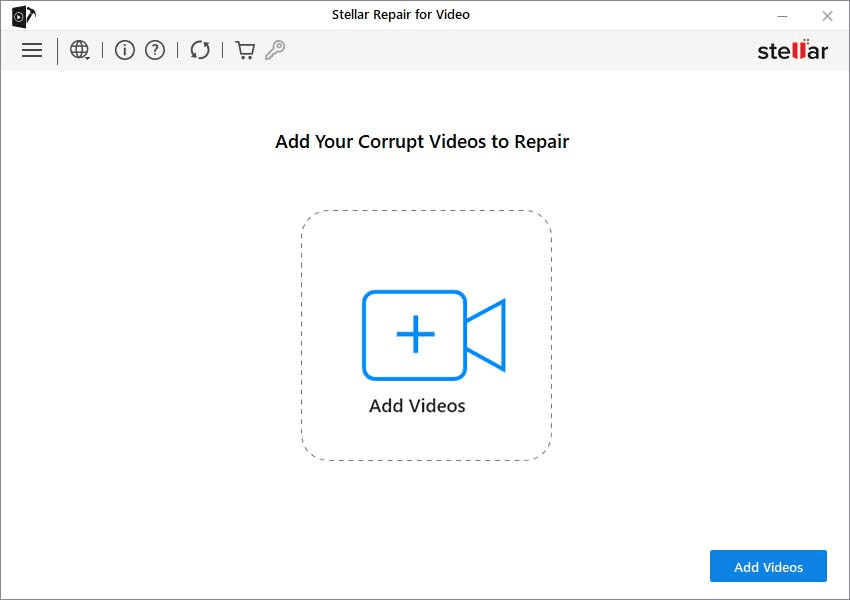
Step 2: After adding the videos, click Repair to initiate the scanning and repairing process. This process may take some time, depending on the size and severity of corruption.
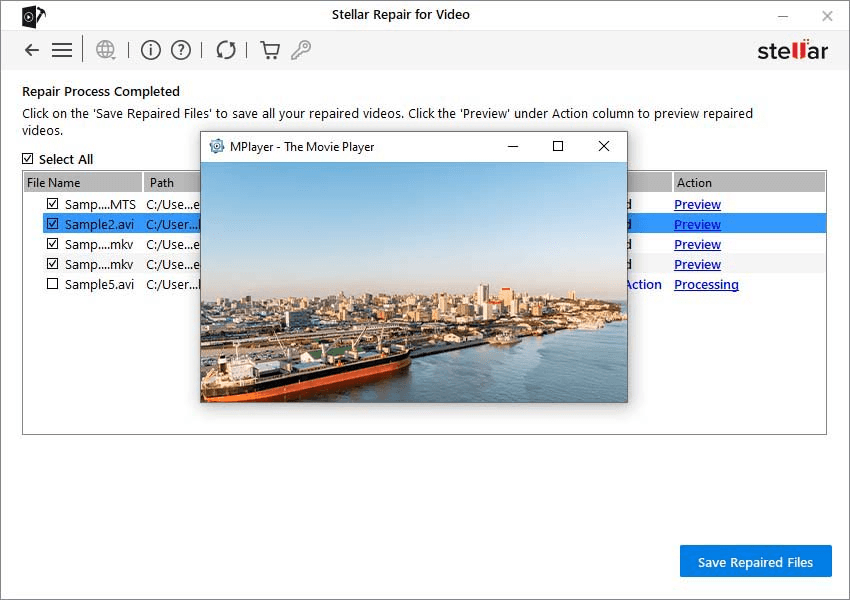
Step 3: Once the repair is complete, preview the repaired videos and click Save Repaired Files to save the repaired files at a safe location on your computer.
Additional Tips to Prevent Video Playback Errors in Future
Now that you know how to fix the “Video File Cannot Be Played” error, it’s time to check some precautionary measures to avoid these issues in the future. This includes:
- Use Reliable Download Source: Always download your videos from a reliable and trusted source to avoid corrupted or incomplete files that can cause playback issues.
- Update Software Regularly: Keep the video player, browsers, and your device OS up to date to ensure compatibility with new video formats and improved performance.
- Back Up Videos: Create a backup of your important video files on cloud services or external drives to prevent permanent loss due to sudden corruption or data loss.
- Check internet stability: Keep your device connected to a stable and high-speed internet connection when streaming videos.
Wrapping Up
Having the “Video file cannot be played” error may seem distressing, but there’s no need to panic. The aforementioned methods will help you repair and restore your videos easily – whether it’s a browser, app, or file issue. If the problem is minor, basic fixes such as clearing the browser cache, updating the browser, etc., can help you resolve the issue. However, for severely corrupt/damaged video files, using third-party video repair software like Stellar Repair for Video is the most effective way. Additionally, it’s also important to back up your videos on external drives or cloud storage to avoid data loss.