



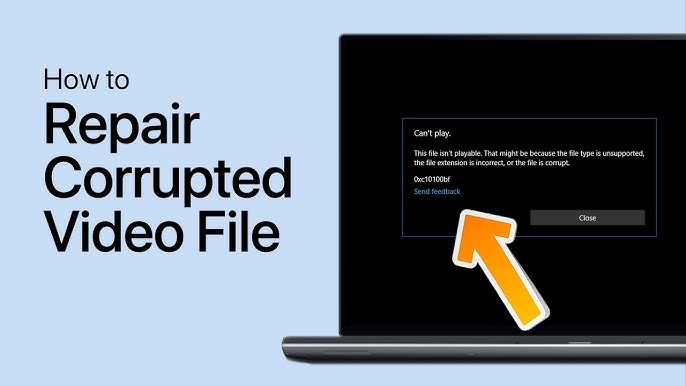
In today’s digital world, storing videos on SD cards has become very convenient. You can easily connect these cards to cameras, drones, smartphones, and action cameras and then play the stored videos anytime. However, you may sometimes encounter a frustrating issue when your videos become corrupted or unplayable. A corrupt video may refuse to play, freeze midway, display distorted visuals, or show an error message.
Fortunately, several online video repair methods are available that you can use to repair corrupted videos from SD cards. This article explains why SD card videos get corrupted, how to repair them, and how to prevent corruption in the future.
Understanding Video Corruption – Common Reasons
A video consists of multiple components, including metadata, codecs, frames, and audio tracks. If any of these components get damaged, your video may fail to play properly. Usually, such instances occur due to damaged or incomplete video file structures, file system errors, viruses or malware attacks, and a few other reasons.
Let’s explore these reasons in detail:
- Improper SD Card Removal: Removing the SD card from a camera, phone, or computer while files are still being written can interrupt the write process and result in an incomplete video file.
- Sudden Power Loss: If your device shuts down unexpectedly while recording due to battery failure or power interruption, the video file may not finalise correctly.
- Virus or Malware: Connecting your SD card to an infected computer may damage or hide files.
- Bad Sectors on the SD Card: Physical damage or ageing storage cells may create bad sectors, making some parts of the video file unreadable.
- Interrupted File Transfer: If the connection between the SD card and the computer is interrupted during transfer, the copied video may become corrupted.
Understanding the exact cause of your video corruption can help you identify appropriate repair workarounds.
Quick Methods to Repair Corrupted Videos from an SD Card
Here are some common video repair methods that you can try to fix your corrupt video files in simple steps:
Method 01: Try Playing Your Video in Another Media Player
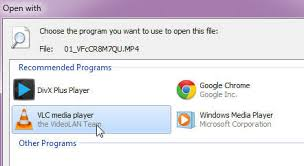
Sometimes, your video is not actually corrupted. It’s the video player which prevents you from playing videos properly. In such cases, you can try reliable media players such as VLC Media Player, Windows Media Player, or QuickTime Player to play video files. Advanced players can often skip damaged frames and still play the rest of the video.
Method 02: Repair Corrupted Videos Using VLC Player
Windows’ built-in VLC media player offers multiple repair features that can help you fix corrupt or damaged video files of several file formats, especially AVI. Follow the below steps to repair corrupted videos using VLC player:
- Launch VLC Media Player on your Windows PC.
- Go to Media > Convert/Save.
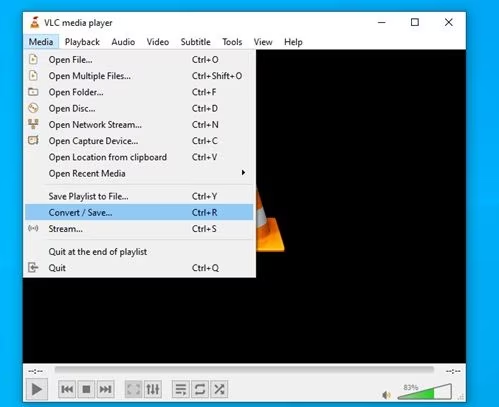
- Add the corrupted video file that you need to repair.
- Choose a new format such as MP4 or AVI.
- Next, click Start in the Convert window to start the conversion.
During conversion, the software reconstructs the video stream, which can repair minor corruption.
Method 03: Increase the Cache values in VLC Player
VLC uses cache values to temporarily store data before playing your video. If your video is corrupted on the SD card, you can increase its cache size. Increasing the cache can help you fix lagging, buffering, or choppy playback problems while watching videos in VLC Media Player. All you have to do is:
- Launch the VLC player on your computer.
- Click on Tools from the top menu bar, then select Preferences.
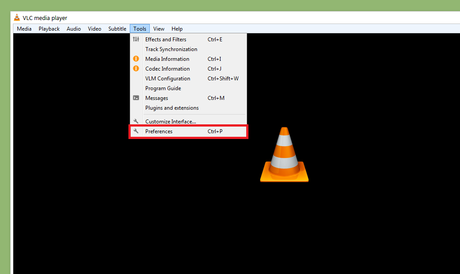
- At the bottom left, select the All option from Show settings.
- Go to Input / Codecs in the left panel.
- Find the File Caching (ms) option and change the values from 300 to 1000 or above.
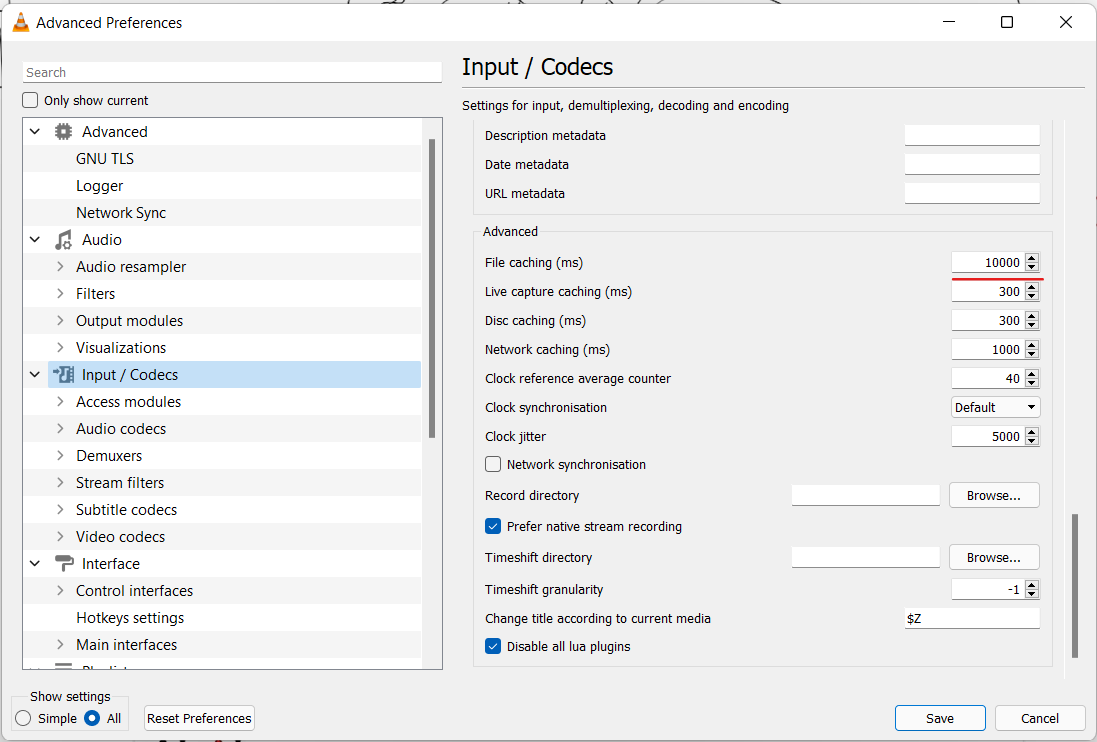
- Click Save and restart VLC Player.
After increasing the cache value, try playing the video again to see if the playback becomes smoother.
Method 04: Repair Corrupted Videos Using Online Video Repair Software
If the aforementioned basic fixes for repairing corrupted videos from SD cards do not work, you can try specialised online video repair tools. Tools like Stellar Repair for Video Online can rebuild damaged files directly from your web browser without requiring advanced technical skills or software installation. The software supports repairing damaged video files of several file formats, including MP4, MOV, AVI, and more.
The Stellar Repair for Video Online software works by analysing the video file structure, identifying errors, and reconstructing missing or damaged components, such as headers, frames, and audio streams. Since it’s an online tool, you don’t need to install any additional software on your computer – making it convenient for quick repairs.
Step-by-Step Guide to Repair Corrupted Videos Online
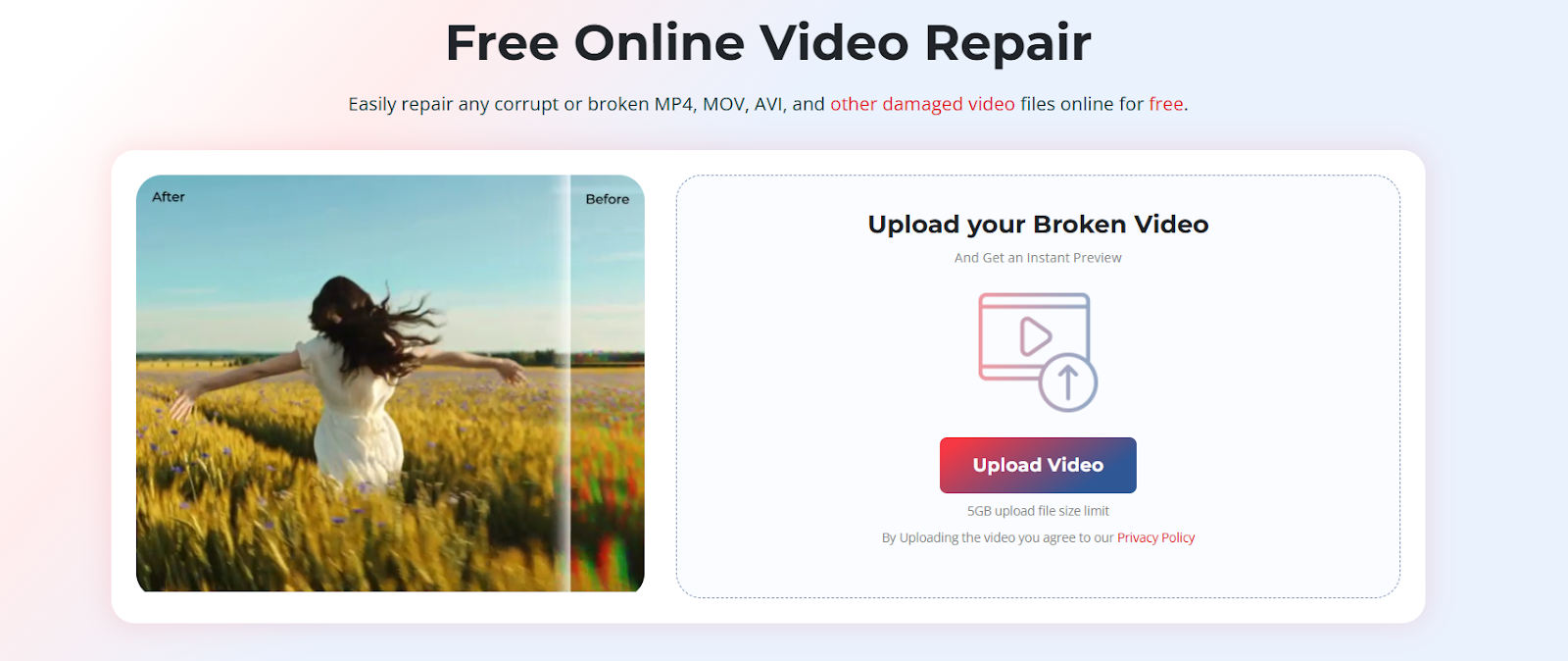
Step 1: Visit the official Stellar Repair for Video Online page. Click “Upload Video” and select the corrupted video file from your computer, SD card, or external storage device.
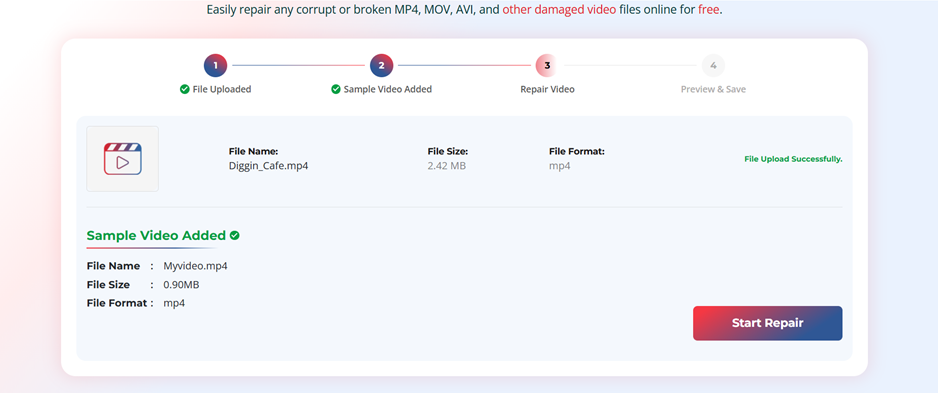
Step 2: After uploading the file, click on the “Start Repair” button to begin the repair process. The software will scan the video for several issues, such as broken or missing file headers, corrupted video frames, and audio-video synchronisation problems.
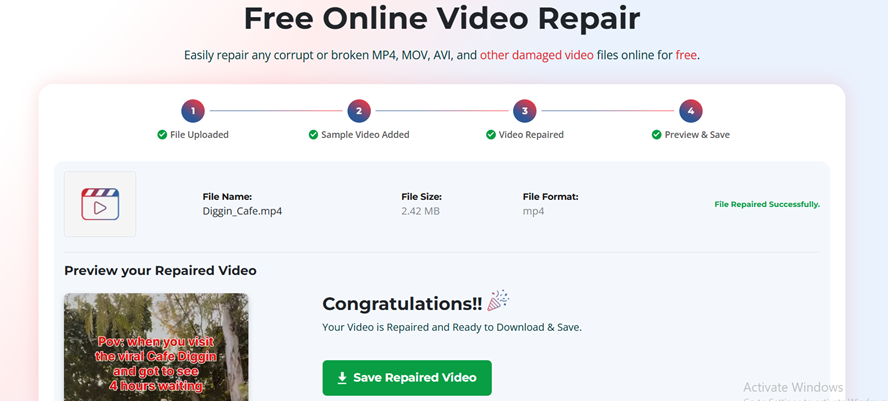
Step 3: Once the repair process is complete, the tool usually provides a preview option. Preview the repaired videos and choose the one you want to save. Click Save Repaired Video to download the fixed video to your device.
Best Practices to Avoid Video Corruption Issues
Repairing corrupted videos can be time-consuming, so prevention is important. Here are some additional tips that you can consider to avoid video corruption problems on your SD card:
- Always Safely Eject the SD Card: Always use the “Safely Remove Hardware” option before removing the SD card from your computer.
- Avoid Interruptions During Recording: Do not remove the battery or power off your recording device while recording.
- Use High-Quality SD Cards: Cheap or counterfeit cards are more likely to fail. Choose reliable brands and the correct speed class for your device.
- Keep Backup Copies: Regularly backing up your important video files to a computer or cloud storage helps prevent data loss.
- Scan for Viruses: If you frequently connect the SD card to computers, scan it with antivirus software to prevent malware from infecting it.
Wrapping Up
Video corruption on SD cards is a common issue caused by factors such as improper card removal, interrupted recording, file system errors, or storage damage. If your video is corrupted, try the aforementioned free video repair fixes one by one. You can start with simple solutions such as switching media players, converting formats, or using VLC’s repair features. If your videos are still failing, try specialised video repair software, such as Stellar Repair for Video Online, to fix them in a few clicks.
With the right techniques and preventive measures, you can recover corrupted videos and protect your digital memories from future damage.